> ## Documentation Index
> Fetch the complete documentation index at: https://docs-agents.fpt.ai/llms.txt
> Use this file to discover all available pages before exploring further.
# Agent capabilities
> Turn each agent's ten default capabilities on or off, versioned with the agent
Every Agent ships with ten built-in capabilities: Long-term memory, web search, code execution, charts and more. The **Agent capabilities** panel lets you keep or switch off each one, so the Agent only does what you actually need.
Agent capabilities are the Agent's baseline, which is different from [Skills](/en/skills). A Skill is a procedure you package for the Agent to reuse; a capability is something the Agent can already do and you only decide whether to allow it.
## Open the Agent capabilities panel
On the agent page, tab **Build**, select **Instructions** in the left column.
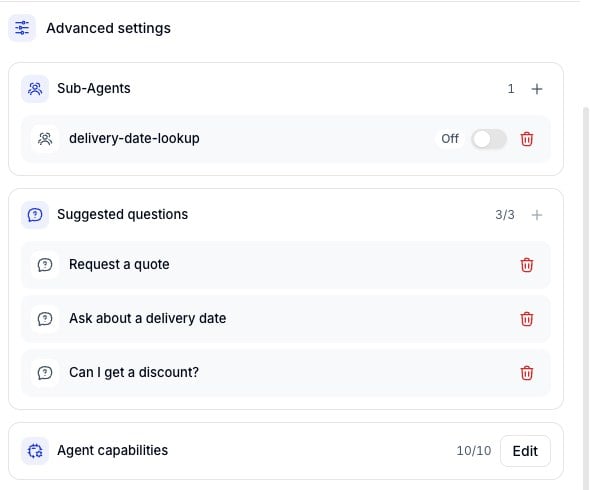
Look for the **Advanced settings** group. The **Agent capabilities** row sits at the very bottom with a counter such as 10/10 showing how many are on.
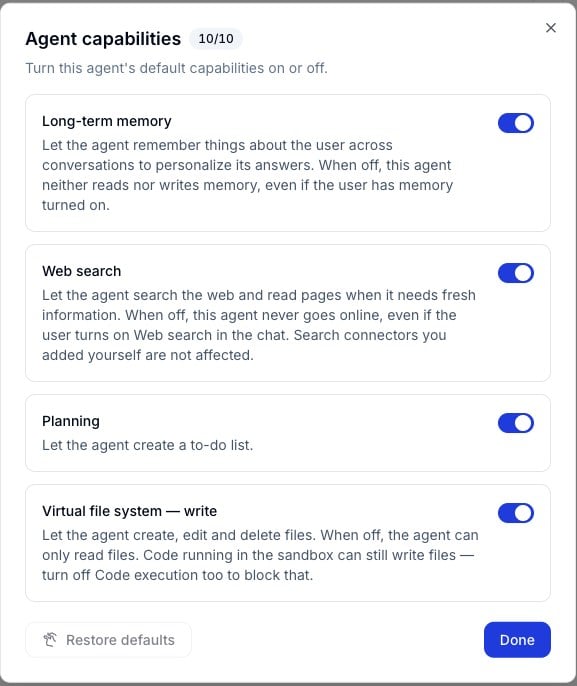
 The **Agent capabilities** dialog opens with the full list, one card per capability with its description and a toggle.
 ## The ten default capabilities
| Capability | What the agent can do when it is on |
| - | - |
| **Long-term memory** | Remember things about the user across conversations to personalize its answers. When off, the agent neither reads nor writes memory, even if the user has memory turned on |
| **Web search** | Search the web and read pages when it needs fresh information. When off, the agent never goes online, even if the user turns on Web search in the chat |
| **Planning** | Create a to-do list before starting a multi-step request |
| **Virtual file system - write** | Create, edit and delete files. When off, the agent can only read files |
| **Code execution / sandbox** | Run code and process data in its own sandbox. When off, the agent cannot run code |
| **Ask the user (HITL)** | Show a question card with choices when it needs to check with the user instead of guessing |
| **Interactive messages** | Add buttons, quick replies, cards and carousels to its answer. When off, the agent answers in plain text only |
| **Default sub-agent** | Hand part of a task to the platform's default sub-agent, a general-purpose agent that can use all of this agent's tools |
| **Inline citations** | Cite its sources inside the answer when it uses web search or Knowledge results |
| **Charts & widgets** | Draw charts and interactive widgets right in the chat. Currently shown in Workspace only |
## Turn a capability on or off
Flip the toggle on the card and you are done, there is no separate save step. The counter in the dialog header follows along, for example from 10/10 down to 9/10. Click **Done** to close the dialog.
Three capabilities interact with others, so watch out when switching them off:
* **Virtual file system - write** and **Code execution / sandbox**: Turning off writing alone is not enough, because code running in the sandbox can still write files. Turn off both to block it completely.
* **Default sub-agent**: Switching this off only removes the platform's shared sub-agent. [Sub-agents](/en/sub-agents) you created yourself are not affected.
* **Web search**: Switching this off does not remove search Connectors you added yourself, they keep working.
Turning off capabilities you do not need keeps the agent focused and quicker to answer. An agent that only looks up internal policy needs neither Web search, nor Code execution, nor Charts & widgets.
## Restore defaults
The **Restore defaults** button in the bottom left of the dialog puts all ten capabilities back to their original state. It only becomes active once you have changed at least one toggle.
## Changes are versioned
Flipping a toggle only changes the agent's **draft**. The agent serving real users keeps running the capability set of the published version until you publish a new one.
Each version records its own capability set, so rolling back to an older version brings that version's capabilities back with it.
Switch off a capability and forget to publish, and the agent on your deployed channels still uses it. After making a change, open the [Publish](/en/publishing) dialog and review the Changes section before releasing.
Default capabilities cannot be added or deleted, only turned on or off. The list of ten is fixed by the platform and identical on every Agent and every Workspace.
This documentation is built and hosted on [Mintlify](https://mintlify.com), a developer documentation platform.
## The ten default capabilities
| Capability | What the agent can do when it is on |
| - | - |
| **Long-term memory** | Remember things about the user across conversations to personalize its answers. When off, the agent neither reads nor writes memory, even if the user has memory turned on |
| **Web search** | Search the web and read pages when it needs fresh information. When off, the agent never goes online, even if the user turns on Web search in the chat |
| **Planning** | Create a to-do list before starting a multi-step request |
| **Virtual file system - write** | Create, edit and delete files. When off, the agent can only read files |
| **Code execution / sandbox** | Run code and process data in its own sandbox. When off, the agent cannot run code |
| **Ask the user (HITL)** | Show a question card with choices when it needs to check with the user instead of guessing |
| **Interactive messages** | Add buttons, quick replies, cards and carousels to its answer. When off, the agent answers in plain text only |
| **Default sub-agent** | Hand part of a task to the platform's default sub-agent, a general-purpose agent that can use all of this agent's tools |
| **Inline citations** | Cite its sources inside the answer when it uses web search or Knowledge results |
| **Charts & widgets** | Draw charts and interactive widgets right in the chat. Currently shown in Workspace only |
## Turn a capability on or off
Flip the toggle on the card and you are done, there is no separate save step. The counter in the dialog header follows along, for example from 10/10 down to 9/10. Click **Done** to close the dialog.
Three capabilities interact with others, so watch out when switching them off:
* **Virtual file system - write** and **Code execution / sandbox**: Turning off writing alone is not enough, because code running in the sandbox can still write files. Turn off both to block it completely.
* **Default sub-agent**: Switching this off only removes the platform's shared sub-agent. [Sub-agents](/en/sub-agents) you created yourself are not affected.
* **Web search**: Switching this off does not remove search Connectors you added yourself, they keep working.
Turning off capabilities you do not need keeps the agent focused and quicker to answer. An agent that only looks up internal policy needs neither Web search, nor Code execution, nor Charts & widgets.
## Restore defaults
The **Restore defaults** button in the bottom left of the dialog puts all ten capabilities back to their original state. It only becomes active once you have changed at least one toggle.
## Changes are versioned
Flipping a toggle only changes the agent's **draft**. The agent serving real users keeps running the capability set of the published version until you publish a new one.
Each version records its own capability set, so rolling back to an older version brings that version's capabilities back with it.
Switch off a capability and forget to publish, and the agent on your deployed channels still uses it. After making a change, open the [Publish](/en/publishing) dialog and review the Changes section before releasing.
Default capabilities cannot be added or deleted, only turned on or off. The list of ten is fixed by the platform and identical on every Agent and every Workspace.
This documentation is built and hosted on [Mintlify](https://mintlify.com), a developer documentation platform.