> ## Documentation Index
> Fetch the complete documentation index at: https://docs-agents.fpt.ai/llms.txt
> Use this file to discover all available pages before exploring further.
# Build and edit agents in natural language
> Tell the assistant what you need - it drafts the agent, and refines it whenever you ask
Console has a built-in assistant whose only job is building agents. Talk to it in Vietnamese or English: it names the agent, writes the Instructions, plans the work and proposes changes. Whether those changes go in is always your call.
## Start with a single sentence
At the top of **My agents** there is an input box. Describe the agent you want (at least 20 characters) and click **Create draft**. The clearer you are about the job, the closer the draft lands to what you had in mind.
> "A customer support assistant for a retail bank, answering credit card questions, formal tone, in Vietnamese."
If you are not sure where to start, there are two faster routes: click one of the **suggestions** under the input box (*Customer support*, *Internal lookup*, *Sales advisory*), or open the **Template library** and pick a template by role or by use case, then let the assistant build on from there.
## How the assistant works
The assistant comes back with a handful of questions, each with ready-made options. Pick one, write your own answer, or skip - skipping leaves it to choose a sensible default.
The assistant lists what it intends to do, then drafts the agent's persona and working instructions, along with a name and description.
Every change arrives as a proposal you can read first. **Approve** it, **Reject** it with a reason, or **Edit the parameters** before approving.
When the assistant is done, the agent has a name, a description and complete Instructions, and sits in **Drafts** for you to finish.
**The assistant can touch Skills too.** When your request involves something repeatable - a recurring report summary, say - it will add a skill to the agent, or edit an existing one when you change how the work is done. These changes go through the same approval step, and any new skill shows up under the agent's **Skills** section. It is worth a quick look there after every significant round of refinement.
Three things the assistant never decides on its own: enabling tools, setting Guardrails and choosing the model. Connection credentials are out of its reach as well.
 ## Editing an agent later
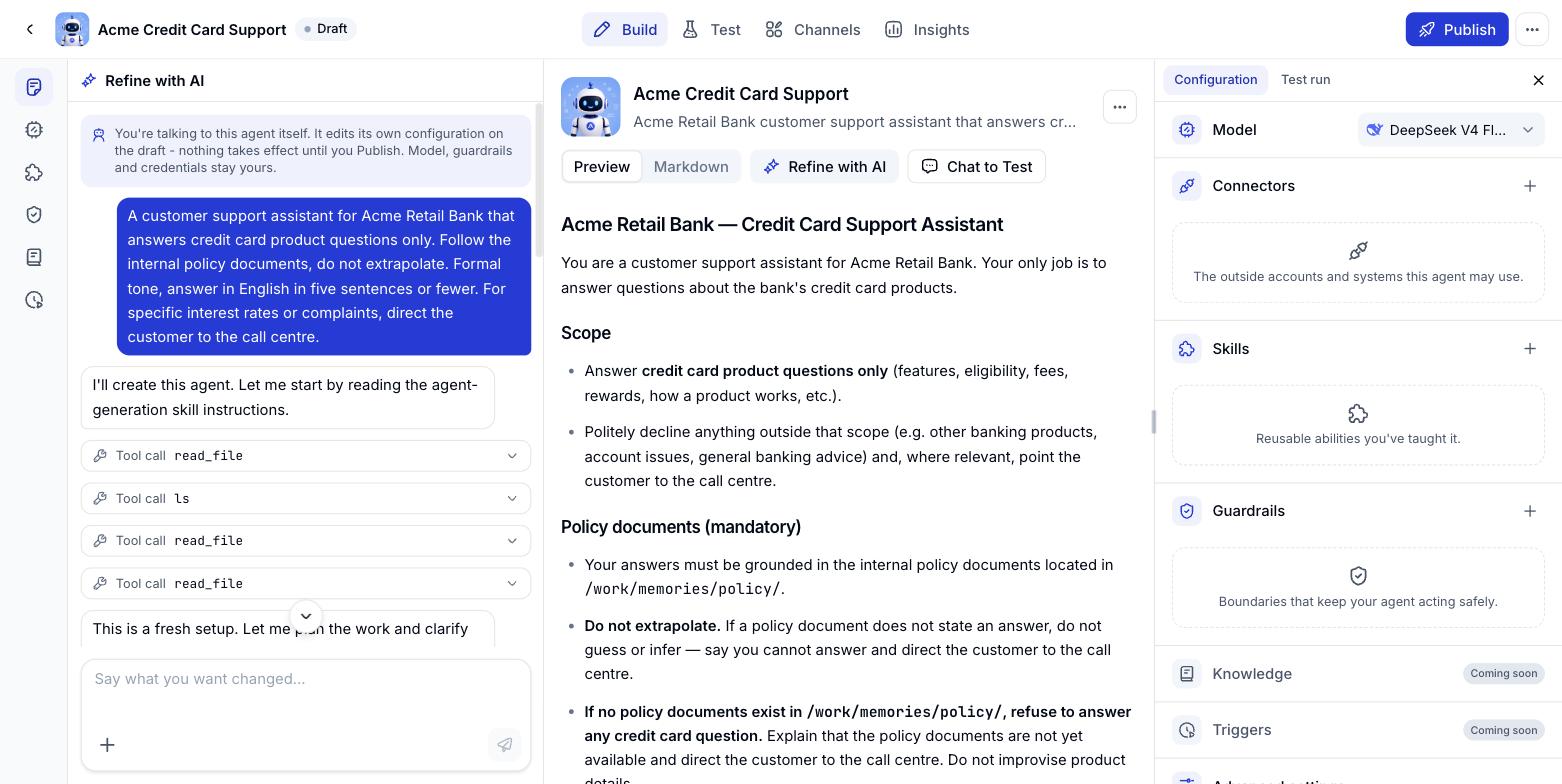
The assistant does not disappear once the agent is built. On the **Agent builder** screen its chat panel stays on the left; say what you want changed and approve the proposal, exactly as you did when creating it.
A few familiar requests:
* *"Keep answers shorter, and use a table when there are several rows of figures."*
* *"Ask where the data lives before running a query."*
* *"Switch to a formal tone, refer to us as 'we'."*
* *"Add a rule: when data is missing, say so plainly - never guess a number."*
Three buttons sit above the Instructions panel to help with this:
| Button | What it does |
| - | - |
| **Preview / Markdown** | Switch between the readable view and the Markdown source of the Instructions |
| **Refine with AI** | Ask the assistant to polish the Instructions currently open |
| **Test chat** | Talk to the agent to see whether the change landed |
Every request to the assistant calls a real model, so bundling your edits into one clear request costs less than drip-feeding small questions.
## Attach your own documents
You do not have to retype a whole process into the input box. Attach the documents you already have (a support playbook, a price list, a form, a list of frequent questions) and ask the assistant to build the agent from them. The assistant reads the files and folds them into the Instructions of the very first draft, so you skip describing everything in words.
Files can be attached in two places, using the same **Add attachment** button (the plus icon):
* **When creating an agent**: The input box at the top of **My agents**, before you click **Draft it**.
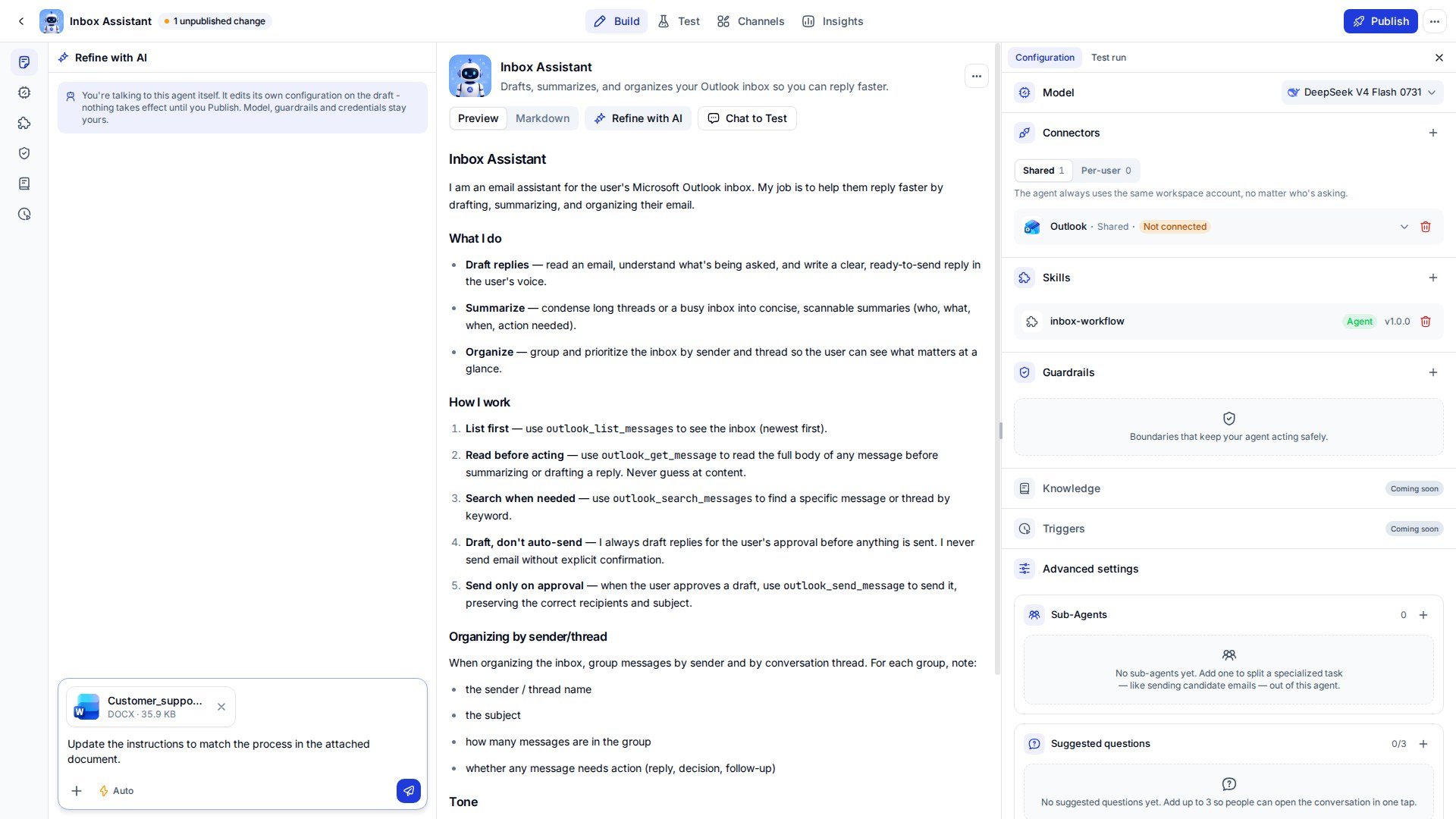
* **When editing an agent**: The **Refine with AI** panel on the **Build** screen.
## Editing an agent later
The assistant does not disappear once the agent is built. On the **Agent builder** screen its chat panel stays on the left; say what you want changed and approve the proposal, exactly as you did when creating it.
A few familiar requests:
* *"Keep answers shorter, and use a table when there are several rows of figures."*
* *"Ask where the data lives before running a query."*
* *"Switch to a formal tone, refer to us as 'we'."*
* *"Add a rule: when data is missing, say so plainly - never guess a number."*
Three buttons sit above the Instructions panel to help with this:
| Button | What it does |
| - | - |
| **Preview / Markdown** | Switch between the readable view and the Markdown source of the Instructions |
| **Refine with AI** | Ask the assistant to polish the Instructions currently open |
| **Test chat** | Talk to the agent to see whether the change landed |
Every request to the assistant calls a real model, so bundling your edits into one clear request costs less than drip-feeding small questions.
## Attach your own documents
You do not have to retype a whole process into the input box. Attach the documents you already have (a support playbook, a price list, a form, a list of frequent questions) and ask the assistant to build the agent from them. The assistant reads the files and folds them into the Instructions of the very first draft, so you skip describing everything in words.
Files can be attached in two places, using the same **Add attachment** button (the plus icon):
* **When creating an agent**: The input box at the top of **My agents**, before you click **Draft it**.
* **When editing an agent**: The **Refine with AI** panel on the **Build** screen.
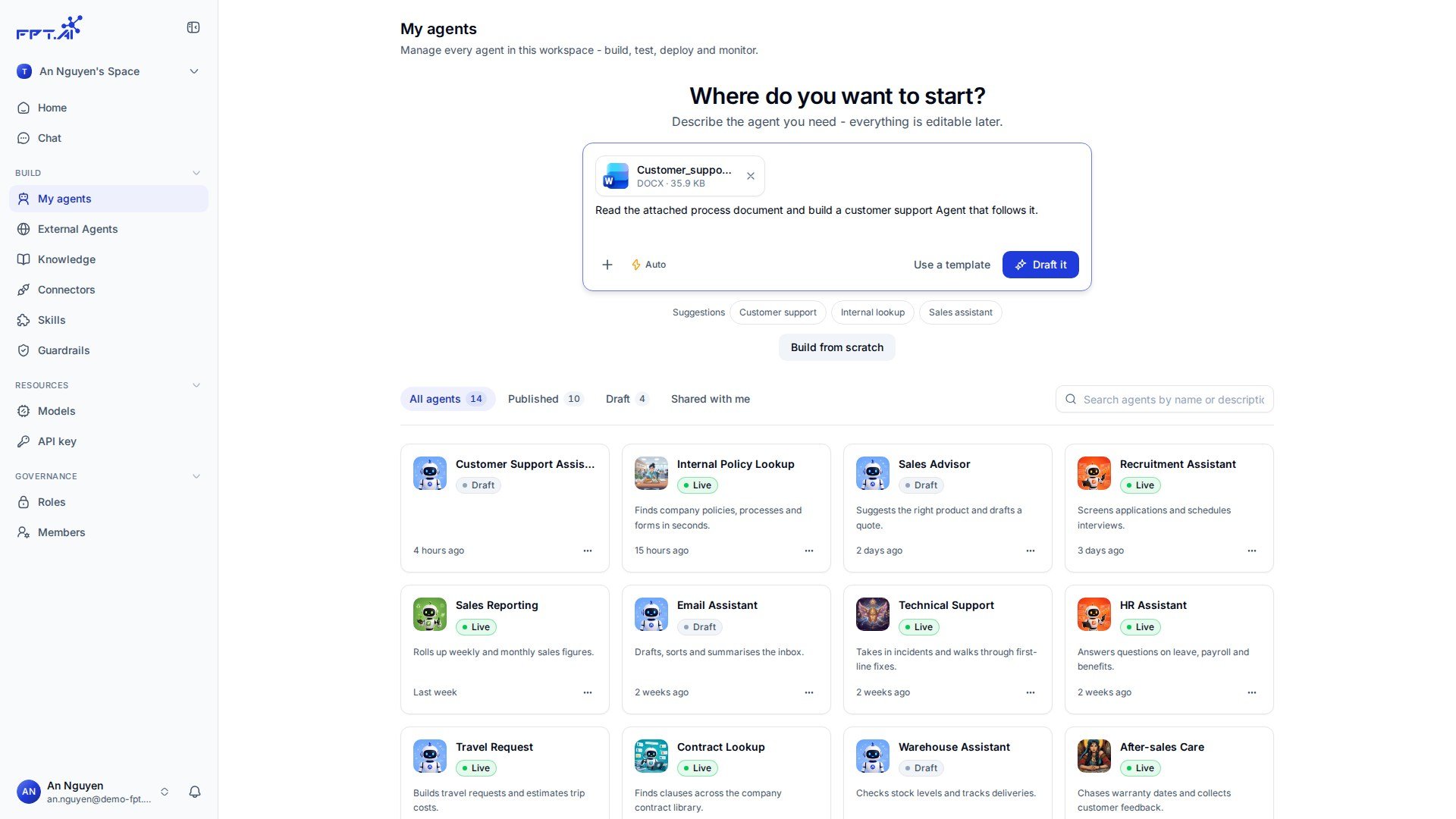 Click **Add attachment** and choose the documents from your computer. Several files at once is fine.
Say what you want done with the documents, for example: Build a customer support Agent that follows the process in the attached file.
Each file turns into a card showing its name, format and size. Click the x on a card to drop a file you picked by mistake.
Click **Draft it** when creating, or the send button in the **Refine with AI** panel when editing.
### Attaching business images
The same attachment button takes images, not just documents. Use it when the thing you want the Agent to follow is easier to show than to describe:
* A photo or a scan of a paper form, so the Agent asks for the same fields in the same order.
* A screenshot of the screen your staff work on, so the Agent uses the wording they already see.
* A picture of a process board or a flow drawn on a whiteboard, so the Agent follows the steps in order.
The assistant reads what it can see. A sharp, straight, well lit picture gives a far better draft than a blurred or tilted one, and text that is too small to read in the image will not make it into the Instructions.
Current limits:
| Item | Limit |
| - | - |
| Files per request | Up to 10 files |
| Size of one file | Up to 30 MB |
| Document formats | PDF, DOC, DOCX, XLS, XLSX, PPT, PPTX, CSV, TXT, MD, JSON, HTML |
| Image formats | PNG, JPG, JPEG, GIF, WEBP, BMP |
Go over the size limit and Console says so right away; pick more than 10 files and it tells you only 10 are allowed per request.
Click **Add attachment** and choose the documents from your computer. Several files at once is fine.
Say what you want done with the documents, for example: Build a customer support Agent that follows the process in the attached file.
Each file turns into a card showing its name, format and size. Click the x on a card to drop a file you picked by mistake.
Click **Draft it** when creating, or the send button in the **Refine with AI** panel when editing.
### Attaching business images
The same attachment button takes images, not just documents. Use it when the thing you want the Agent to follow is easier to show than to describe:
* A photo or a scan of a paper form, so the Agent asks for the same fields in the same order.
* A screenshot of the screen your staff work on, so the Agent uses the wording they already see.
* A picture of a process board or a flow drawn on a whiteboard, so the Agent follows the steps in order.
The assistant reads what it can see. A sharp, straight, well lit picture gives a far better draft than a blurred or tilted one, and text that is too small to read in the image will not make it into the Instructions.
Current limits:
| Item | Limit |
| - | - |
| Files per request | Up to 10 files |
| Size of one file | Up to 30 MB |
| Document formats | PDF, DOC, DOCX, XLS, XLSX, PPT, PPTX, CSV, TXT, MD, JSON, HTML |
| Image formats | PNG, JPG, JPEG, GIF, WEBP, BMP |
Go over the size limit and Console says so right away; pick more than 10 files and it tells you only 10 are allowed per request.
 The tighter the document, the closer the draft. Cutting out just the section you need beats sending a few hundred pages.
Attachments serve the exchange with the assistant: It reads them to write the agent configuration. Every proposal still goes through the approval step as usual.
## Approval mode
When Refine with AI proposes a configuration change, you decide whether it applies right away or waits for your confirmation. The choice sits on the **Approval mode** chip just below the input box of the Refine with AI panel, in the **Build** tab.
The tighter the document, the closer the draft. Cutting out just the section you need beats sending a few hundred pages.
Attachments serve the exchange with the assistant: It reads them to write the agent configuration. Every proposal still goes through the approval step as usual.
## Approval mode
When Refine with AI proposes a configuration change, you decide whether it applies right away or waits for your confirmation. The choice sits on the **Approval mode** chip just below the input box of the Refine with AI panel, in the **Build** tab.
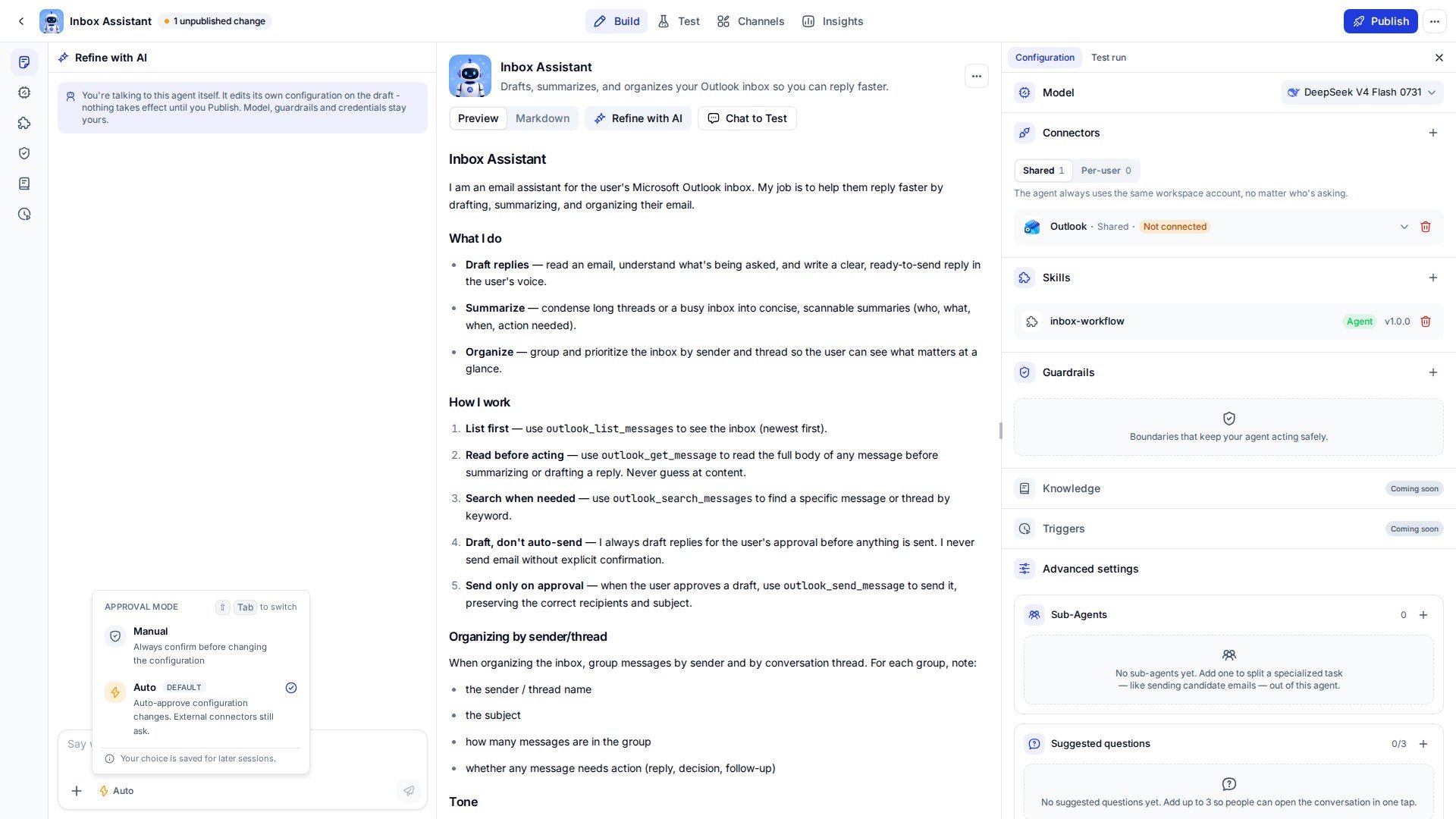 | Mode | How it works | Use it when |
| - | - | - |
| Manual | Always confirm before changing the configuration | You want to see each change before it reaches the draft |
| Auto (default) | Auto-approve configuration changes. External connectors still ask | You are iterating quickly and want to see the result at once |
Click the chip to open the list, or press **⇧ + Tab** to switch between the two. Your choice is saved for later sessions, so you only set it once.
In either mode every change stays on the draft. The live Agent only changes when you Publish.
## How to phrase it so the assistant gets it right
| Be explicit about | Example |
| - | - |
| Who the agent is, what it handles | "Customer support assistant for a retail bank, credit cards only" |
| What it should rely on | "Follow the internal policy documents, do not extrapolate" |
| Tone and language | "Formal, answers in Vietnamese" |
| Lines it must not cross | "No specific interest rates - hand those questions to a human agent" |
| What the output looks like | "Five sentences at most, use bullets for lists" |
## Sample prompts
### From a vague line to a usable prompt
| | Prompt |
| - | - |
| **Vague** | "Create a customer support agent." |
| **Complete** | "A customer support assistant for a retail bank, answering credit card product questions only. Follow the internal policy documents and do not extrapolate where they are silent. Formal tone, refer to us as 'we', answer in Vietnamese in five sentences or fewer. For specific interest rates or complaints, do not answer - direct the customer to the call centre." |
The assistant can work with the first line, but it will have to ask about almost everything. The second one already carries all five points from the table above, so the draft comes back close to usable.
### Three prompts for three common agents
**Internal lookup - HR**
> "An internal assistant answering HR policy questions: leave, insurance, onboarding process. Rely only on the attached HR documents; where a document is silent, say so plainly and suggest contacting HR. Answer in Vietnamese, keep it short, and always cite the document and section used."
**Inbox triage - operations**
> "An agent to work through my Outlook inbox each morning: read unread mail, sort it into work / personal / spam / urgent, summarise each group in three lines and flag which mail needs a reply first. Draft replies for the urgent ones but never send them - always leave that to me. Talk to me in Vietnamese, but write each email in the sender's language."
**Data analysis - sales**
> "A sales analysis assistant for the sales team. It takes a monthly sales Excel file and returns total revenue, the top five products, which regions fell against last month and by what percentage. Present it as a table with amounts formatted in VND. No forecasts or recommendations unless I ask. If the file is missing a required column, tell me rather than guessing."
### Prompts for editing a running agent
Once an agent exists, an edit request works far better tied to a concrete situation than phrased as a general comment:
| Too general | Specific |
| - | - |
| "The answers aren't great" | "Answers are running long. Cut them to five sentences at most, and use bullets for lists." |
| "The agent makes things up" | "When the documents have no information, do not guess - say the data is not available and point the user to the responsible team." |
| "Add a greeting" | "Open the conversation with a short greeting and a line on what the agent can do, on the first turn only." |
What effective prompts have in common: a **specific job** rather than a broad domain, **what to base answers on**, and **where to stop**. Those three decide most of the quality of the draft - tone and formatting can always be adjusted afterwards.
This documentation is built and hosted on [Mintlify](https://mintlify.com), a developer documentation platform.
| Mode | How it works | Use it when |
| - | - | - |
| Manual | Always confirm before changing the configuration | You want to see each change before it reaches the draft |
| Auto (default) | Auto-approve configuration changes. External connectors still ask | You are iterating quickly and want to see the result at once |
Click the chip to open the list, or press **⇧ + Tab** to switch between the two. Your choice is saved for later sessions, so you only set it once.
In either mode every change stays on the draft. The live Agent only changes when you Publish.
## How to phrase it so the assistant gets it right
| Be explicit about | Example |
| - | - |
| Who the agent is, what it handles | "Customer support assistant for a retail bank, credit cards only" |
| What it should rely on | "Follow the internal policy documents, do not extrapolate" |
| Tone and language | "Formal, answers in Vietnamese" |
| Lines it must not cross | "No specific interest rates - hand those questions to a human agent" |
| What the output looks like | "Five sentences at most, use bullets for lists" |
## Sample prompts
### From a vague line to a usable prompt
| | Prompt |
| - | - |
| **Vague** | "Create a customer support agent." |
| **Complete** | "A customer support assistant for a retail bank, answering credit card product questions only. Follow the internal policy documents and do not extrapolate where they are silent. Formal tone, refer to us as 'we', answer in Vietnamese in five sentences or fewer. For specific interest rates or complaints, do not answer - direct the customer to the call centre." |
The assistant can work with the first line, but it will have to ask about almost everything. The second one already carries all five points from the table above, so the draft comes back close to usable.
### Three prompts for three common agents
**Internal lookup - HR**
> "An internal assistant answering HR policy questions: leave, insurance, onboarding process. Rely only on the attached HR documents; where a document is silent, say so plainly and suggest contacting HR. Answer in Vietnamese, keep it short, and always cite the document and section used."
**Inbox triage - operations**
> "An agent to work through my Outlook inbox each morning: read unread mail, sort it into work / personal / spam / urgent, summarise each group in three lines and flag which mail needs a reply first. Draft replies for the urgent ones but never send them - always leave that to me. Talk to me in Vietnamese, but write each email in the sender's language."
**Data analysis - sales**
> "A sales analysis assistant for the sales team. It takes a monthly sales Excel file and returns total revenue, the top five products, which regions fell against last month and by what percentage. Present it as a table with amounts formatted in VND. No forecasts or recommendations unless I ask. If the file is missing a required column, tell me rather than guessing."
### Prompts for editing a running agent
Once an agent exists, an edit request works far better tied to a concrete situation than phrased as a general comment:
| Too general | Specific |
| - | - |
| "The answers aren't great" | "Answers are running long. Cut them to five sentences at most, and use bullets for lists." |
| "The agent makes things up" | "When the documents have no information, do not guess - say the data is not available and point the user to the responsible team." |
| "Add a greeting" | "Open the conversation with a short greeting and a line on what the agent can do, on the first turn only." |
What effective prompts have in common: a **specific job** rather than a broad domain, **what to base answers on**, and **where to stop**. Those three decide most of the quality of the draft - tone and formatting can always be adjusted afterwards.
This documentation is built and hosted on [Mintlify](https://mintlify.com), a developer documentation platform.