> ## Documentation Index
> Fetch the complete documentation index at: https://docs-agents.fpt.ai/llms.txt
> Use this file to discover all available pages before exploring further.
# Knowledge base permissions
> Choose who can link a knowledge base to an agent and who receives answers from it
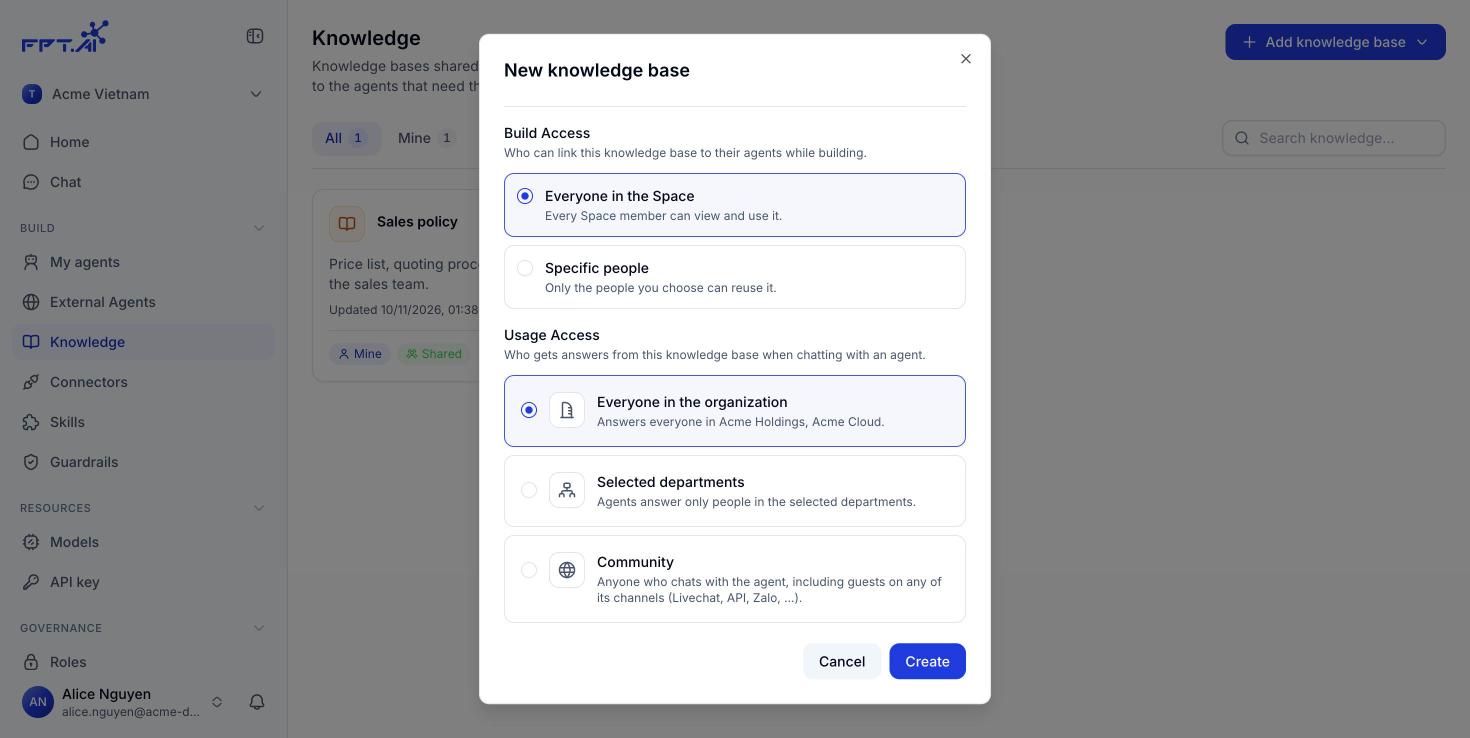
Every [knowledge base](/en/knowledge) has two permission groups that work independently. **Build access** decides who can link the knowledge base to an agent while building. **Usage access** decides who receives answers drawn from it when chatting with an agent.
Keeping the two apart lets several agents read one knowledge base without opening edit rights to everybody.
 ## Build access
It answers the question: Who can link this knowledge base to an agent while building.
| Level | Who can use it | When to choose it |
| - | - | - |
| **Everyone in the Space** | Every Space member can see and reuse it | Shared material that anyone building an agent may need |
| **Specific people** | Only the people you pick can reuse it | Sensitive material that only a small group may attach to an agent |
When you choose **Specific people**, a picker appears so you can add them one by one. You have to add at least one person before you can save.
The owner always keeps management rights over their own knowledge base, even at the Specific people level and even without adding themselves to the list.
## Usage access
It answers the question: Who receives answers drawn from this knowledge base when chatting with an agent.
| Level | The agent answers | When to choose it |
| - | - | - |
| **Everyone in the organization** | Everyone in the organizations tied to the Space | Internal material shared across the company |
| **Selected departments** | Only people in the departments you pick | Rules that belong to one department, for example an HR process |
| **Community** | Anyone chatting with the agent, including guests on every channel (Live Chat, API, Zalo...) | Material that is already public, for example a list price or a warranty policy |
When you choose **Selected departments**, the organization's department list appears with a search box and the headcount of each department. You have to pick at least one.
**Community** takes the content of the knowledge base outside the organization. A stranger messaging the agent through Live Chat, Zalo or the API can receive what is inside it. Only choose this level for material you are happy to make public.
The two groups are independent. A knowledge base can have Build access at Specific people (only the legal team may attach it) while Usage access is set to Everyone in the organization (every employee who asks the agent gets the answer).
## Changing the permissions later
You set both groups when you first create the knowledge base, but you can change them at any time.
On the **Knowledge** screen, click ⋯ on the knowledge base card. The menu has **View details**, **Edit**, **Build access**, **Usage access** and **Delete**.
Choose **Build access** or **Usage access**. Each one opens its own dialog, so you do not have to reopen the whole form.
The change takes effect immediately for every agent linked to the knowledge base, with no need to publish the agent again.
The detail screen also shows two summary badges in the header, for example **Access: Everyone in the Space** and **Usage: Whole organization**, so you can see at a glance how far the knowledge base is open.
Narrowing Build access does not detach the knowledge base from agents that are already using it. To stop an agent from using it, open that agent and choose **Unlink** in the Knowledge section.
This documentation is built and hosted on [Mintlify](https://mintlify.com), a developer documentation platform.
## Build access
It answers the question: Who can link this knowledge base to an agent while building.
| Level | Who can use it | When to choose it |
| - | - | - |
| **Everyone in the Space** | Every Space member can see and reuse it | Shared material that anyone building an agent may need |
| **Specific people** | Only the people you pick can reuse it | Sensitive material that only a small group may attach to an agent |
When you choose **Specific people**, a picker appears so you can add them one by one. You have to add at least one person before you can save.
The owner always keeps management rights over their own knowledge base, even at the Specific people level and even without adding themselves to the list.
## Usage access
It answers the question: Who receives answers drawn from this knowledge base when chatting with an agent.
| Level | The agent answers | When to choose it |
| - | - | - |
| **Everyone in the organization** | Everyone in the organizations tied to the Space | Internal material shared across the company |
| **Selected departments** | Only people in the departments you pick | Rules that belong to one department, for example an HR process |
| **Community** | Anyone chatting with the agent, including guests on every channel (Live Chat, API, Zalo...) | Material that is already public, for example a list price or a warranty policy |
When you choose **Selected departments**, the organization's department list appears with a search box and the headcount of each department. You have to pick at least one.
**Community** takes the content of the knowledge base outside the organization. A stranger messaging the agent through Live Chat, Zalo or the API can receive what is inside it. Only choose this level for material you are happy to make public.
The two groups are independent. A knowledge base can have Build access at Specific people (only the legal team may attach it) while Usage access is set to Everyone in the organization (every employee who asks the agent gets the answer).
## Changing the permissions later
You set both groups when you first create the knowledge base, but you can change them at any time.
On the **Knowledge** screen, click ⋯ on the knowledge base card. The menu has **View details**, **Edit**, **Build access**, **Usage access** and **Delete**.
Choose **Build access** or **Usage access**. Each one opens its own dialog, so you do not have to reopen the whole form.
The change takes effect immediately for every agent linked to the knowledge base, with no need to publish the agent again.
The detail screen also shows two summary badges in the header, for example **Access: Everyone in the Space** and **Usage: Whole organization**, so you can see at a glance how far the knowledge base is open.
Narrowing Build access does not detach the knowledge base from agents that are already using it. To stop an agent from using it, open that agent and choose **Unlink** in the Knowledge section.
This documentation is built and hosted on [Mintlify](https://mintlify.com), a developer documentation platform.