> ## Documentation Index
> Fetch the complete documentation index at: https://docs-agents.fpt.ai/llms.txt
> Use this file to discover all available pages before exploring further.
# Knowledge bases
> Build one knowledge base for the whole Space, then link it to every agent that needs it
A knowledge base is a place where you upload documents once and let several agents read them. Instead of re-uploading the same files for every agent, you create the knowledge base at Space level and link it to the agents that need it.
There are two kinds of knowledge base. A **Space knowledge base** lives in the left menu under Knowledge and is shared across agents. An **agent knowledge base** is created inside the agent's Instructions screen and only that agent uses it. An agent can have its own knowledge base and linked Space knowledge bases at the same time.
## Opening the Knowledge screen
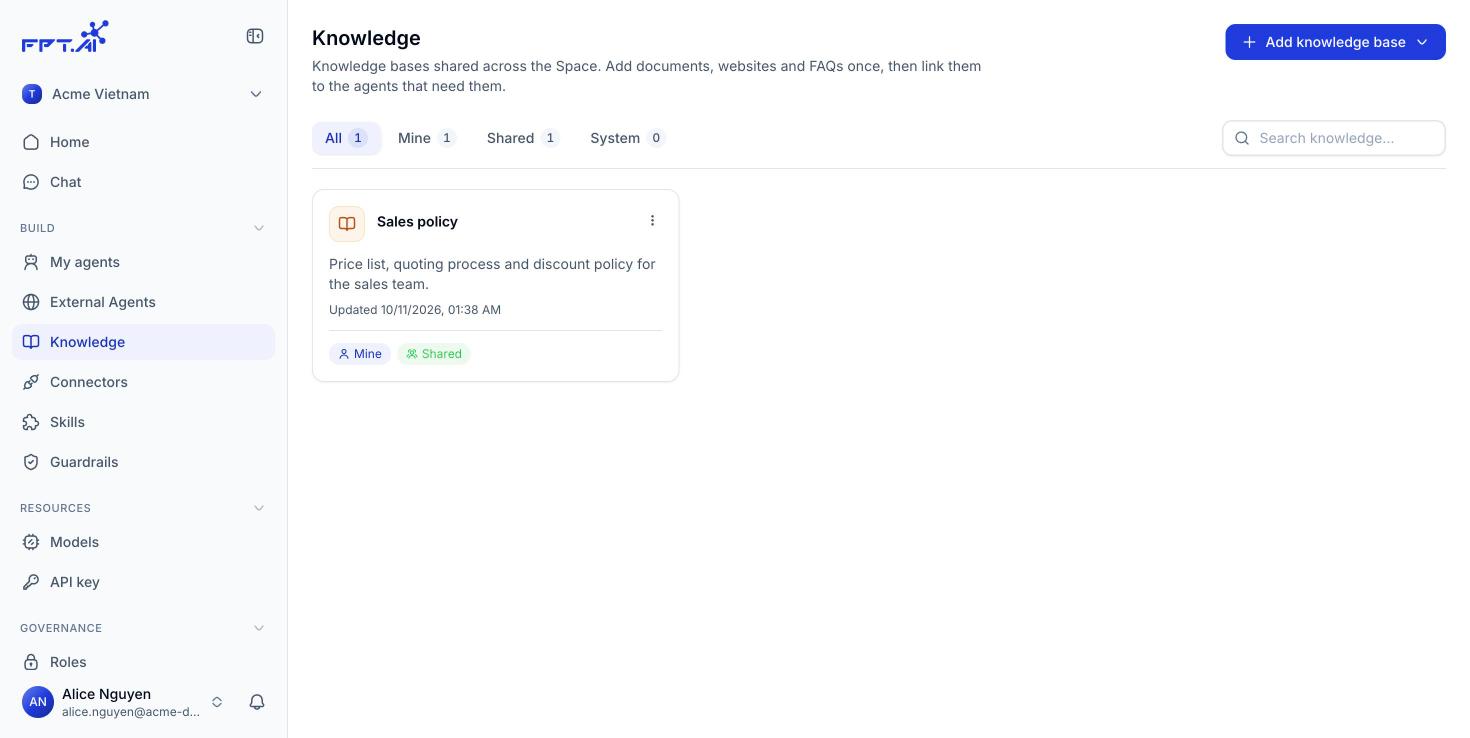
In the Console left menu, under **Build**, choose **Knowledge**. The list shows every knowledge base you are allowed to see, split into four tabs: **All**, **Mine**, **Shared** and **System**. The search box on the right filters by name.
 ## Creating a knowledge base
The button sits in the top right. The menu has two options: **Create knowledge base** to upload your own documents, and **Connect external knowledge base**, which is Coming soon.
The name is required and takes up to 50 characters. The description takes up to 256 characters, so write what the knowledge base holds and other people will know whether to reuse it.
## Creating a knowledge base
The button sits in the top right. The menu has two options: **Create knowledge base** to upload your own documents, and **Connect external knowledge base**, which is Coming soon.
The name is required and takes up to 50 characters. The description takes up to 256 characters, so write what the knowledge base holds and other people will know whether to reuse it.
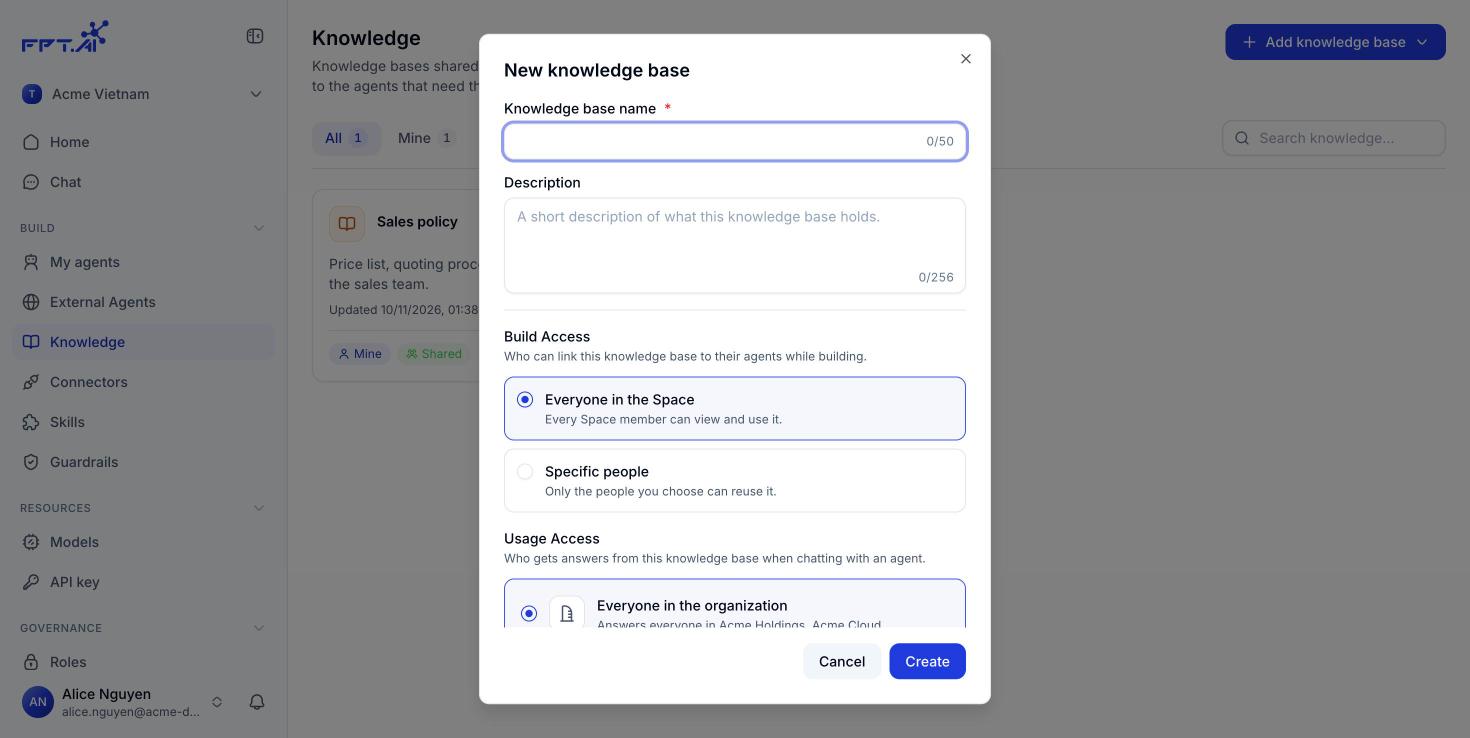 These two permission groups decide who can link the knowledge base to an agent and who receives answers drawn from it. See [Knowledge base permissions](/en/knowledge-permissions).
The new knowledge base appears in the list, empty and ready for documents.
### Fields in the form
| Field | Required | What it means |
| - | - | - |
| **Knowledge base name** | Yes | Shown everywhere the knowledge base is listed. Up to 50 characters |
| **Description** | No | What the knowledge base holds. Up to 256 characters |
| **Build access** | Yes | Who can link this knowledge base to an agent while building |
| **Usage access** | Yes | Who receives answers drawn from this knowledge base when chatting with an agent |
## The knowledge base detail screen
Click a knowledge base card to open its detail screen. The header shows the name, the description and three summary badges: who owns it, and the level each permission group is set to.
These two permission groups decide who can link the knowledge base to an agent and who receives answers drawn from it. See [Knowledge base permissions](/en/knowledge-permissions).
The new knowledge base appears in the list, empty and ready for documents.
### Fields in the form
| Field | Required | What it means |
| - | - | - |
| **Knowledge base name** | Yes | Shown everywhere the knowledge base is listed. Up to 50 characters |
| **Description** | No | What the knowledge base holds. Up to 256 characters |
| **Build access** | Yes | Who can link this knowledge base to an agent while building |
| **Usage access** | Yes | Who receives answers drawn from this knowledge base when chatting with an agent |
## The knowledge base detail screen
Click a knowledge base card to open its detail screen. The header shows the name, the description and three summary badges: who owns it, and the level each permission group is set to.
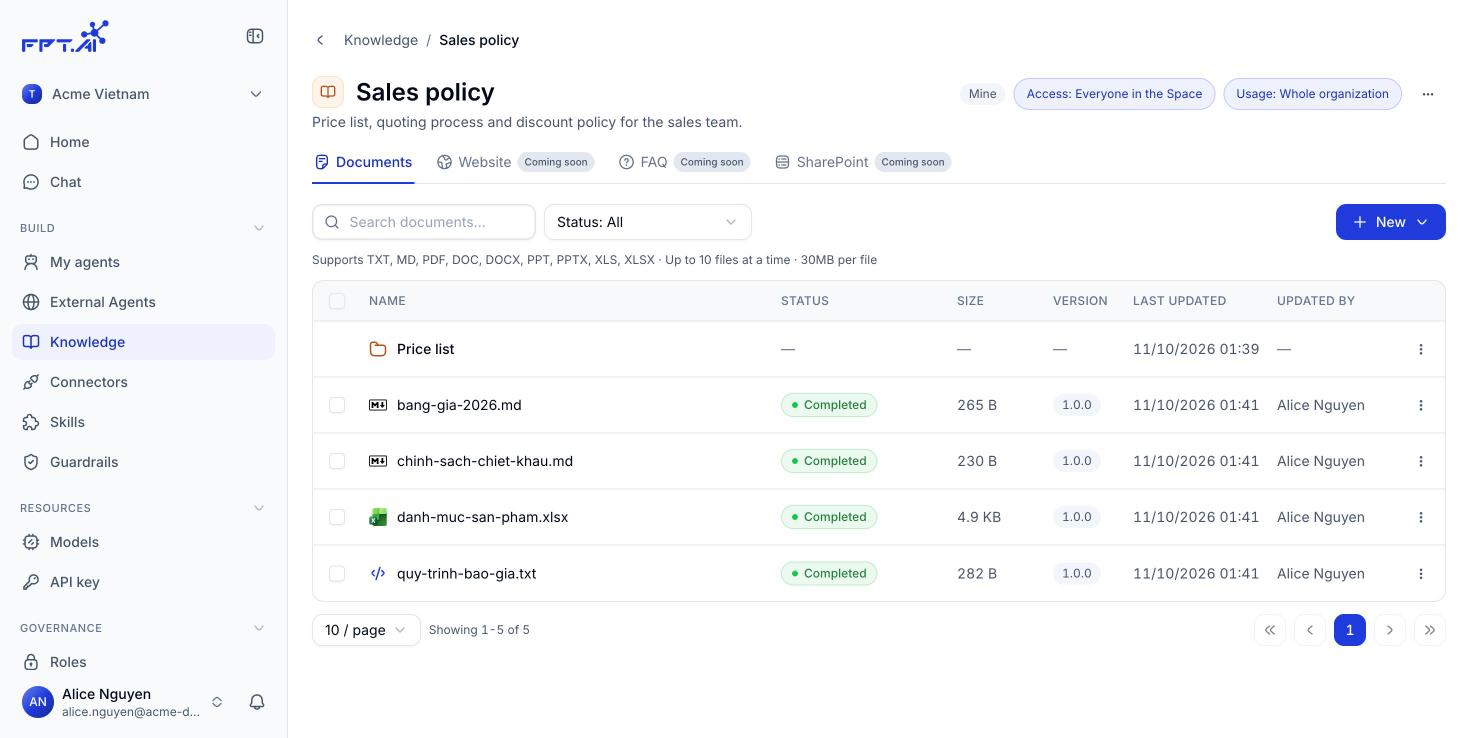 A knowledge base has four source tabs. Only **Documents** works today; **Website**, **FAQ** and **SharePoint** are Coming soon.
The document table has these columns:
| Column | What it means |
| - | - |
| **Name** | File or folder name |
| **Status** | Processing progress of the file |
| **Size** | File size |
| **Version** | File version number, starting at 1.0.0 |
| **Last updated** | When the file last changed |
| **Updated by** | Who made the change |
Above the table there is a **Search documents** box and a **Status** filter, so you can quickly find files that are still queued or that failed.
## Uploading documents
The **New** button in the top right has two options: **Upload documents** and **New folder**.
The dialog accepts TXT, MD, PDF, DOC, DOCX, PPT, PPTX, XLS and XLSX.
A knowledge base has four source tabs. Only **Documents** works today; **Website**, **FAQ** and **SharePoint** are Coming soon.
The document table has these columns:
| Column | What it means |
| - | - |
| **Name** | File or folder name |
| **Status** | Processing progress of the file |
| **Size** | File size |
| **Version** | File version number, starting at 1.0.0 |
| **Last updated** | When the file last changed |
| **Updated by** | Who made the change |
Above the table there is a **Search documents** box and a **Status** filter, so you can quickly find files that are still queued or that failed.
## Uploading documents
The **New** button in the top right has two options: **Upload documents** and **New folder**.
The dialog accepts TXT, MD, PDF, DOC, DOCX, PPT, PPTX, XLS and XLSX.
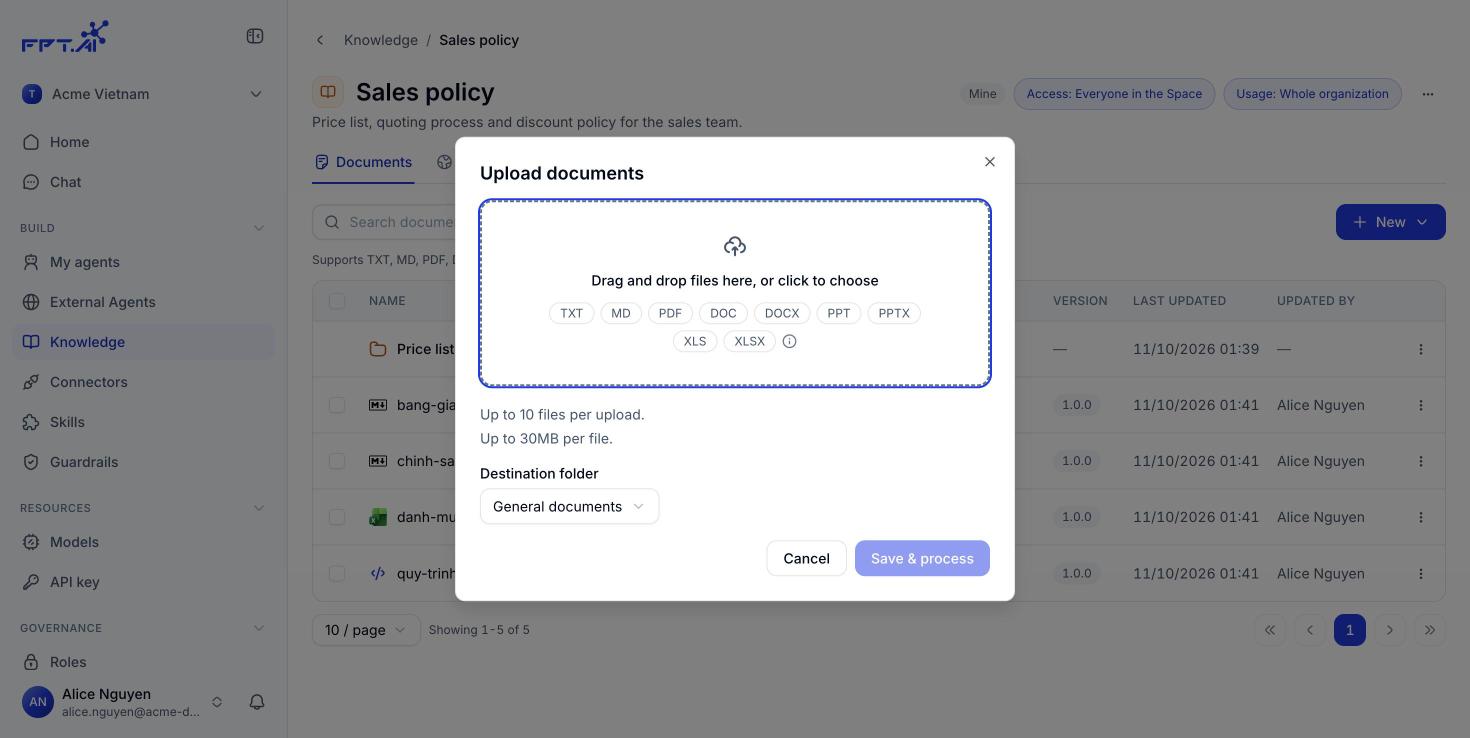 The default is **General documents**. If the knowledge base already has folders, choose one here.
Console takes the files and processes them in the background. You do not have to stay on the screen.
Limits per upload: 10 files at a time, 30MB per file.
## File processing status
Every file moves through the states shown in the **Status** column:
| Status | What it means |
| - | - |
| **Pending** | The file reached the system and is queued |
| **Processing** | The system is extracting the content and indexing it |
| **Completed** | Agents can now answer from this file |
| **Failed** | The content could not be extracted, for example a scanned-image PDF or a corrupt file |
An agent can only answer from files in the **Completed** state. If the agent says it cannot find something, open the knowledge base and filter by status to see whether a file is still processing or has failed.
## Organising with folders
Click **New**, choose **New folder**, type a name and click **Create**. A new folder always sits at the top level of the knowledge base.
Folders let you split documents by topic or by period, for example Price list, Contract templates, Reports 2026. The Status, Size and Version columns stay empty on a folder row because a folder is not a file.
## Renaming, moving and deleting
The ⋯ menu at the end of each file row has these actions:
| Action | When to use it |
| - | - |
| **Open** | Review the content of the uploaded file |
| **Rename** | Change the display name, which does not affect the indexed content |
| **Move** | Move the file to another folder in the same knowledge base |
| **Delete** | Remove the file from the knowledge base so agents can no longer read it |
To handle several files at once, tick the checkbox at the start of each row. An action bar appears with an **N selected** counter and a **Delete** button. Click **Clear selection** to leave it.
Deleting a file removes it from the knowledge base for good. Every agent linked to the knowledge base loses that content immediately, with no need to publish again.
## Attaching a knowledge base to an agent
A knowledge base only does its job once an agent is attached to it. You do that in the agent's **Instructions** screen, in the **Configuration** column on the right, under **Knowledge**.
The default is **General documents**. If the knowledge base already has folders, choose one here.
Console takes the files and processes them in the background. You do not have to stay on the screen.
Limits per upload: 10 files at a time, 30MB per file.
## File processing status
Every file moves through the states shown in the **Status** column:
| Status | What it means |
| - | - |
| **Pending** | The file reached the system and is queued |
| **Processing** | The system is extracting the content and indexing it |
| **Completed** | Agents can now answer from this file |
| **Failed** | The content could not be extracted, for example a scanned-image PDF or a corrupt file |
An agent can only answer from files in the **Completed** state. If the agent says it cannot find something, open the knowledge base and filter by status to see whether a file is still processing or has failed.
## Organising with folders
Click **New**, choose **New folder**, type a name and click **Create**. A new folder always sits at the top level of the knowledge base.
Folders let you split documents by topic or by period, for example Price list, Contract templates, Reports 2026. The Status, Size and Version columns stay empty on a folder row because a folder is not a file.
## Renaming, moving and deleting
The ⋯ menu at the end of each file row has these actions:
| Action | When to use it |
| - | - |
| **Open** | Review the content of the uploaded file |
| **Rename** | Change the display name, which does not affect the indexed content |
| **Move** | Move the file to another folder in the same knowledge base |
| **Delete** | Remove the file from the knowledge base so agents can no longer read it |
To handle several files at once, tick the checkbox at the start of each row. An action bar appears with an **N selected** counter and a **Delete** button. Click **Clear selection** to leave it.
Deleting a file removes it from the knowledge base for good. Every agent linked to the knowledge base loses that content immediately, with no need to publish again.
## Attaching a knowledge base to an agent
A knowledge base only does its job once an agent is attached to it. You do that in the agent's **Instructions** screen, in the **Configuration** column on the right, under **Knowledge**.
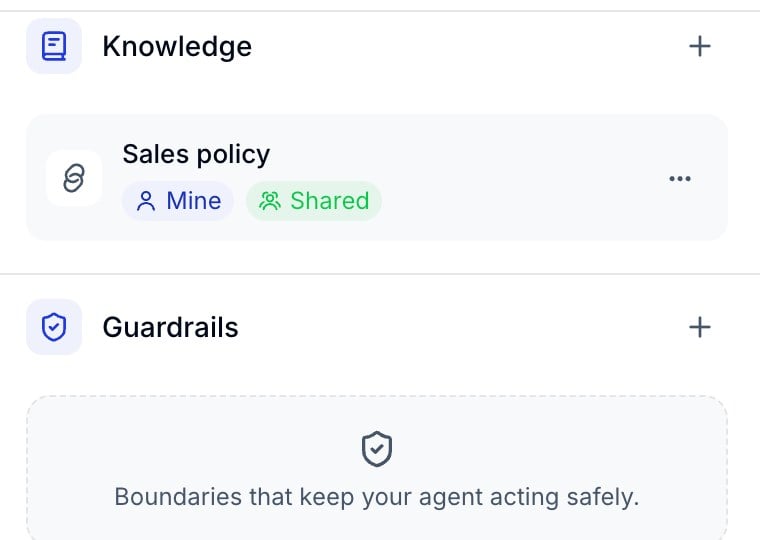 Click the **+** in the Knowledge section and a menu offers two options:
* **Link an existing knowledge base**: Share a knowledge base that other agents already use.
* **Create new**: Build a knowledge base that belongs to this agent.
### Linking a Space knowledge base
The dialog lists the knowledge bases in the Space you have access to, with the owner's name and the document count.
The **N selected** counter keeps up. The search box at the top helps when the Space has many knowledge bases.
The knowledge base appears in the agent's Knowledge section with a badge telling you whether it is yours or shared with you.
### Creating a knowledge base for one agent
Choose **Create new** when the documents only serve the agent you are building. The form is the same as the Space-level form, and a knowledge base created this way still appears in the Space Knowledge list if you set Build access to Everyone in the Space.
### Managing linked knowledge bases
The ⋯ menu next to each knowledge base in the agent's Knowledge section has three actions:
| Action | What happens |
| - | - |
| **View details** | Open the detail screen to read and edit the documents |
| **Rename** | Rename the knowledge base |
| **Unlink** | This agent stops using it. The knowledge base stays in the Space and other agents are unaffected |
Unlinking is not the same as deleting. Unlinking only cuts the tie between one agent and the knowledge base; deleting it on the Knowledge screen removes it from the Space altogether.
A knowledge base is a Space resource, not part of an agent's version. Adding or removing documents takes effect immediately, even for an agent that is already published. Attaching or unlinking a knowledge base, however, is a change to the agent's configuration, so you still need to [publish](/en/publishing) it for the deployment channels to pick it up.
This documentation is built and hosted on [Mintlify](https://mintlify.com), a developer documentation platform.
Click the **+** in the Knowledge section and a menu offers two options:
* **Link an existing knowledge base**: Share a knowledge base that other agents already use.
* **Create new**: Build a knowledge base that belongs to this agent.
### Linking a Space knowledge base
The dialog lists the knowledge bases in the Space you have access to, with the owner's name and the document count.
The **N selected** counter keeps up. The search box at the top helps when the Space has many knowledge bases.
The knowledge base appears in the agent's Knowledge section with a badge telling you whether it is yours or shared with you.
### Creating a knowledge base for one agent
Choose **Create new** when the documents only serve the agent you are building. The form is the same as the Space-level form, and a knowledge base created this way still appears in the Space Knowledge list if you set Build access to Everyone in the Space.
### Managing linked knowledge bases
The ⋯ menu next to each knowledge base in the agent's Knowledge section has three actions:
| Action | What happens |
| - | - |
| **View details** | Open the detail screen to read and edit the documents |
| **Rename** | Rename the knowledge base |
| **Unlink** | This agent stops using it. The knowledge base stays in the Space and other agents are unaffected |
Unlinking is not the same as deleting. Unlinking only cuts the tie between one agent and the knowledge base; deleting it on the Knowledge screen removes it from the Space altogether.
A knowledge base is a Space resource, not part of an agent's version. Adding or removing documents takes effect immediately, even for an agent that is already published. Attaching or unlinking a knowledge base, however, is a change to the agent's configuration, so you still need to [publish](/en/publishing) it for the deployment channels to pick it up.
This documentation is built and hosted on [Mintlify](https://mintlify.com), a developer documentation platform.