> ## Documentation Index
> Fetch the complete documentation index at: https://docs-agents.fpt.ai/llms.txt
> Use this file to discover all available pages before exploring further.
# Managing deployment channels
> See where the agent serves, which version runs on each channel, and change it when you need to
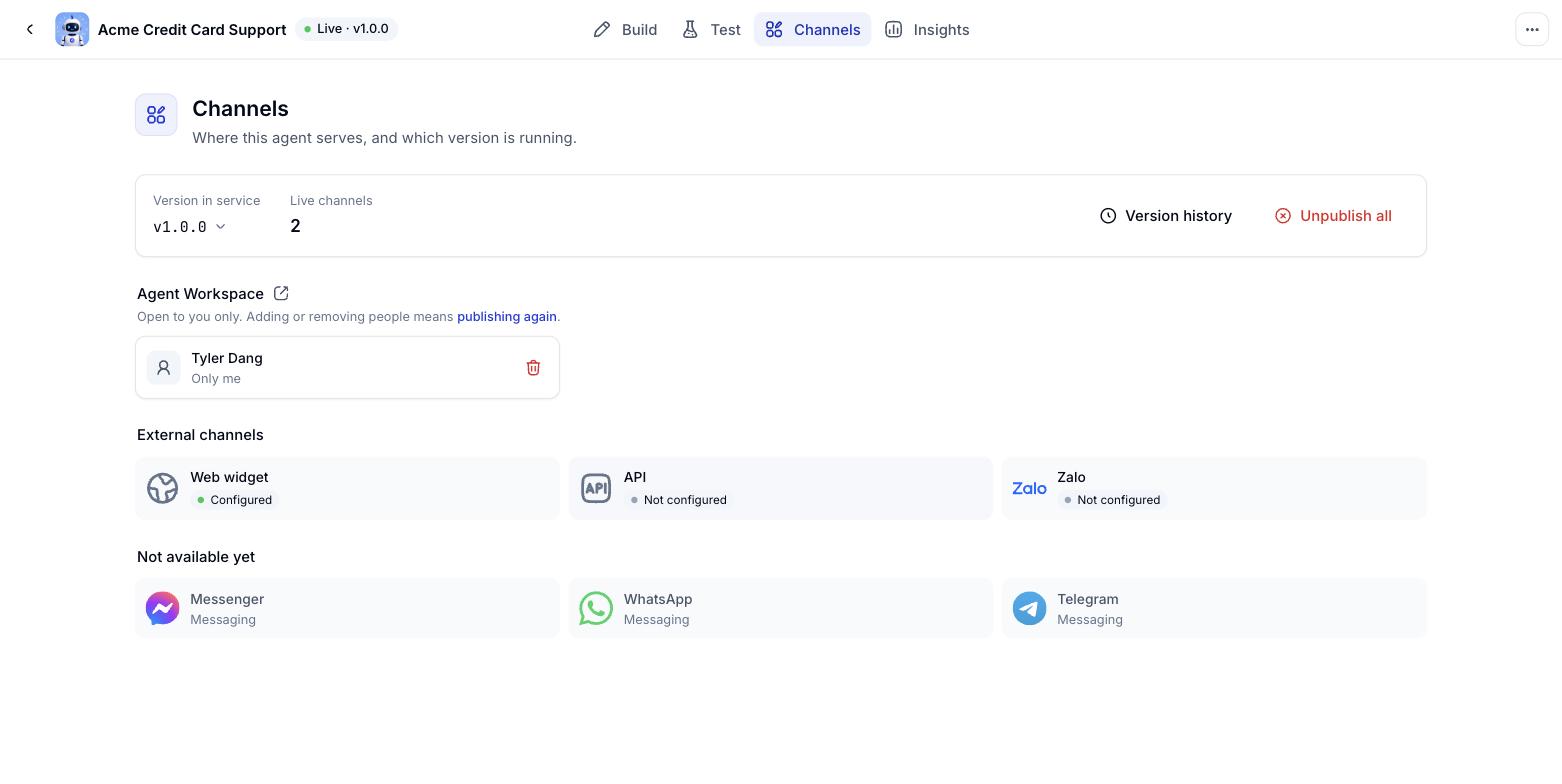
The **Channels** tab gathers every place the agent is reachable: Agent Workspace and the external channels. It tells you which channels are live, which are not configured yet, and which version serves on each.
## Integration architecture
The platform offers two channels for putting an agent in front of your end customers. Both channels share the same agents, the same knowledge base and the same conversation history; they differ only in who owns the chat interface.
```mermaid theme={null}
flowchart LR
subgraph KH["Your systems"]
U1["Customer
browser / app"]
W["Your website
+ embedded widget"]
U2["Customer
Zalo, app, your own web"]
CA["Your core app"]
WH["Your webhook server"]
end
subgraph FPT["FPT AI Agent Platform"]
BFF["direct-bff
Visitor API + SSE"]
CG["channel-gateway
Webhook Server"]
MD["Message Dispatching"]
AG["AI Agents
agent-runtime, llm-gateway, knowledge"]
end
U1 --> W
W -->|HTTPS / SSE| BFF
BFF -->|gRPC| AG
U2 --> CA
CA -->|HTTPS| CG
CG --> AG
AG --> MD
MD -->|Callbacks| WH
WH --> U2
```
We provide the chat interface. You paste an embed snippet into your website, or call the SDK in your mobile app.
You keep the chat interface you already have. Customer messages are pushed to us over a webhook; answers come back to your webhook as callbacks.
## Opening the Channels tab
Open the agent and pick **Channels** from its navigation bar. The header reads "Where this agent serves, and which version is running".
 ### Live channels
The **Live channels** count tells you how many channels are genuinely serving users. A zero means nothing is running, whether or not you have configured a channel.
The **Go to Build** button takes you back to the Agent builder tab to publish a first version.
## Agent Workspace
The **Agent Workspace** block shows who the agent is open to inside the Workspace.
Before the agent has ever been published, this block sits empty with the prompt: "No published version yet. Publish a version on the Build tab first, then come back here to open it to people."
Once published, it shows the sharing scope you chose (only you, a company or department, or the FPT AI Agent community) and the version currently serving. More on the [Publishing](/en/publishing) page.
## External channels
The **External channels** block lists the channels outside Workspace along with their configuration state.
Live chat on your website. Starts out as Not configured.
Called directly from your own systems. Starts out as Not configured.
Official Account. Starts out as Not configured.
A channel configured here still answers nobody while the agent is unpublished: customers who write in get "This conversation is unavailable". Configuring ahead of time is fine - just remember to go back to the Agent builder tab and publish.
### Channels not open yet
The **Not available yet** block lists messaging channels still on the roadmap. They are shown so you can see what is coming; they cannot be configured.
A Facebook page answering customers through the agent.
A WhatsApp Business number answering customers through the agent.
A Telegram bot answering customers through the agent.
## Adding a deployment channel
In the External channels block, click a channel marked **Not configured**.
Each channel asks for different details. See [Live Chat channel](/en/live-chat-channel) or [Zalo channel](/en/zalo-channel).
Click **Save configuration** for the Web widget, or **Connect** for Zalo. The channel moves from Not configured to configured.
Return to the Agent builder tab, click **Publish**, tick the channel under External channels and publish.
## Choosing which version serves on each channel
Channels can run different versions. You might keep the website on a stable v1.0.1 while Zalo already runs v1.0.2.
On the Channels tab, click the running channel.
Click the release selector. The list shows every published version with its release date and notes.
The one currently running is marked **Serving**. Choose another to switch.
Click the release button to apply. Click **Cancel** if you were only looking.
### Live channels
The **Live channels** count tells you how many channels are genuinely serving users. A zero means nothing is running, whether or not you have configured a channel.
The **Go to Build** button takes you back to the Agent builder tab to publish a first version.
## Agent Workspace
The **Agent Workspace** block shows who the agent is open to inside the Workspace.
Before the agent has ever been published, this block sits empty with the prompt: "No published version yet. Publish a version on the Build tab first, then come back here to open it to people."
Once published, it shows the sharing scope you chose (only you, a company or department, or the FPT AI Agent community) and the version currently serving. More on the [Publishing](/en/publishing) page.
## External channels
The **External channels** block lists the channels outside Workspace along with their configuration state.
Live chat on your website. Starts out as Not configured.
Called directly from your own systems. Starts out as Not configured.
Official Account. Starts out as Not configured.
A channel configured here still answers nobody while the agent is unpublished: customers who write in get "This conversation is unavailable". Configuring ahead of time is fine - just remember to go back to the Agent builder tab and publish.
### Channels not open yet
The **Not available yet** block lists messaging channels still on the roadmap. They are shown so you can see what is coming; they cannot be configured.
A Facebook page answering customers through the agent.
A WhatsApp Business number answering customers through the agent.
A Telegram bot answering customers through the agent.
## Adding a deployment channel
In the External channels block, click a channel marked **Not configured**.
Each channel asks for different details. See [Live Chat channel](/en/live-chat-channel) or [Zalo channel](/en/zalo-channel).
Click **Save configuration** for the Web widget, or **Connect** for Zalo. The channel moves from Not configured to configured.
Return to the Agent builder tab, click **Publish**, tick the channel under External channels and publish.
## Choosing which version serves on each channel
Channels can run different versions. You might keep the website on a stable v1.0.1 while Zalo already runs v1.0.2.
On the Channels tab, click the running channel.
Click the release selector. The list shows every published version with its release date and notes.
The one currently running is marked **Serving**. Choose another to switch.
Click the release button to apply. Click **Cancel** if you were only looking.
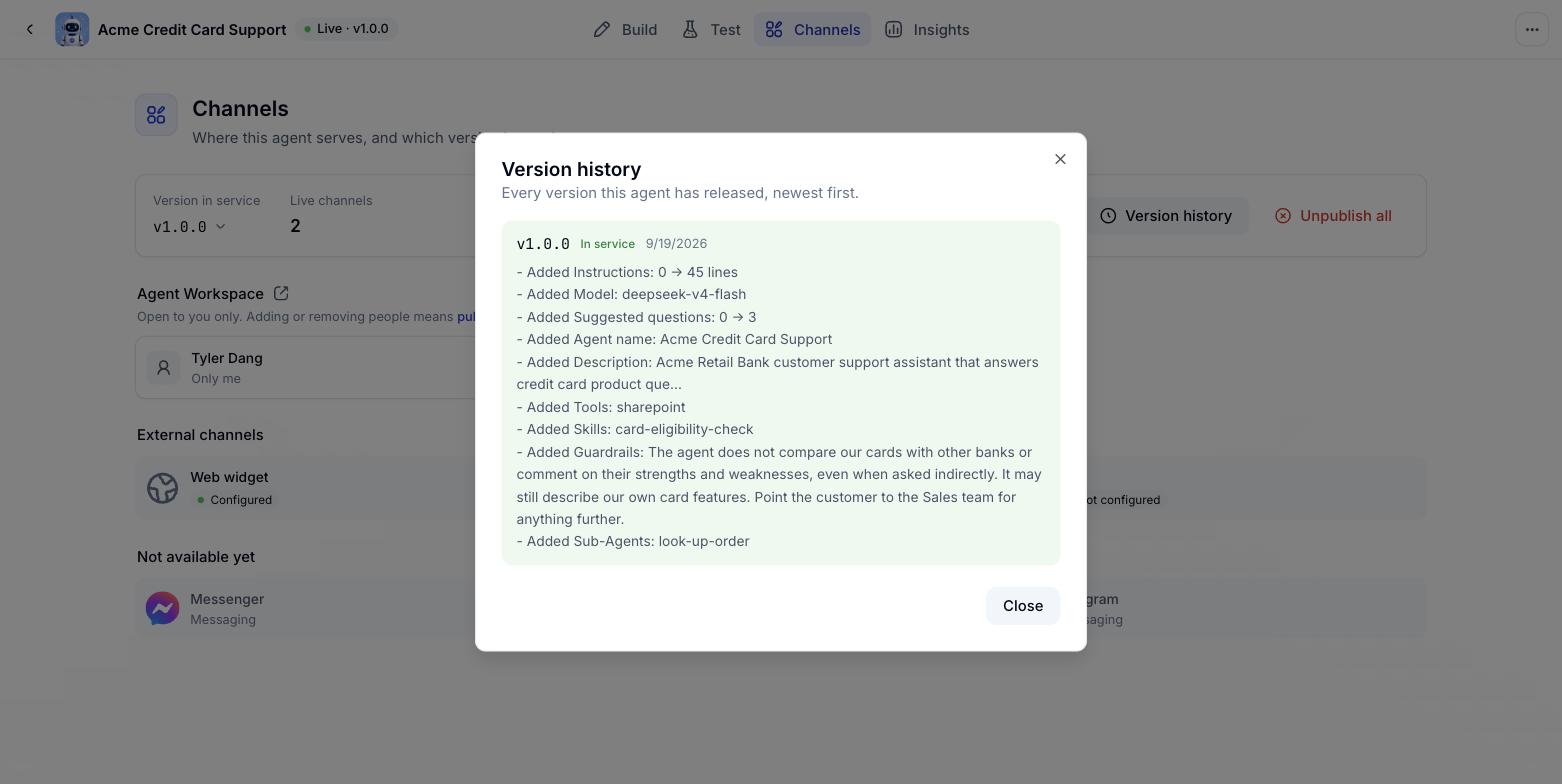 Need to go back because the new version answers badly? Pick the older version from this same list. Published versions are always kept.
## Editing a channel's configuration
Click a configured channel to reopen its settings. Change what you need and save. For the Web widget, appearance changes take effect immediately everywhere the code is embedded - no need to re-embed.
## Technical integration documentation
This page covers switching channels on and managing them in Console. When your engineering team needs to embed more deeply, see the integration set:
Embed code, widget customisation, share links and the Visitor API for teams building their own interface.
Bringing the chat window into Android and iOS apps.
Webhooks, HMAC signing, callbacks, reading conversation history and API keys.
Error code tables, system limits and the pre-production checklist.
## Disconnecting a channel
There are two ways to stop serving on a channel:
Open the **Publish** dialog, untick the channel under External channels and publish. The channel keeps its configuration and simply stops serving.
Open the channel's configuration panel and disconnect. This wipes the connection details, so you would have to enter them again to come back.
After disconnecting, the **Live channels** count at the top drops accordingly. Check that number after every change to be sure the agent is serving exactly where you intend.
This documentation is built and hosted on [Mintlify](https://mintlify.com), a developer documentation platform.
Need to go back because the new version answers badly? Pick the older version from this same list. Published versions are always kept.
## Editing a channel's configuration
Click a configured channel to reopen its settings. Change what you need and save. For the Web widget, appearance changes take effect immediately everywhere the code is embedded - no need to re-embed.
## Technical integration documentation
This page covers switching channels on and managing them in Console. When your engineering team needs to embed more deeply, see the integration set:
Embed code, widget customisation, share links and the Visitor API for teams building their own interface.
Bringing the chat window into Android and iOS apps.
Webhooks, HMAC signing, callbacks, reading conversation history and API keys.
Error code tables, system limits and the pre-production checklist.
## Disconnecting a channel
There are two ways to stop serving on a channel:
Open the **Publish** dialog, untick the channel under External channels and publish. The channel keeps its configuration and simply stops serving.
Open the channel's configuration panel and disconnect. This wipes the connection details, so you would have to enter them again to come back.
After disconnecting, the **Live channels** count at the top drops accordingly. Check that number after every change to be sure the agent is serving exactly where you intend.
This documentation is built and hosted on [Mintlify](https://mintlify.com), a developer documentation platform.