> ## Documentation Index
> Fetch the complete documentation index at: https://docs-agents.fpt.ai/llms.txt
> Use this file to discover all available pages before exploring further.
# Microsoft Teams channel
> Connect the Agent to a Microsoft Teams bot so people can message it inside Teams
The Microsoft Teams channel lets people message the Agent inside Teams. You register a bot on Azure, paste the bot's credentials into the Console, and the Agent answers on that bot.
## Open the Channels screen
Go to **My agents** in the left menu and click the Agent's name.
It sits on the top bar next to Build, Test and Insights.
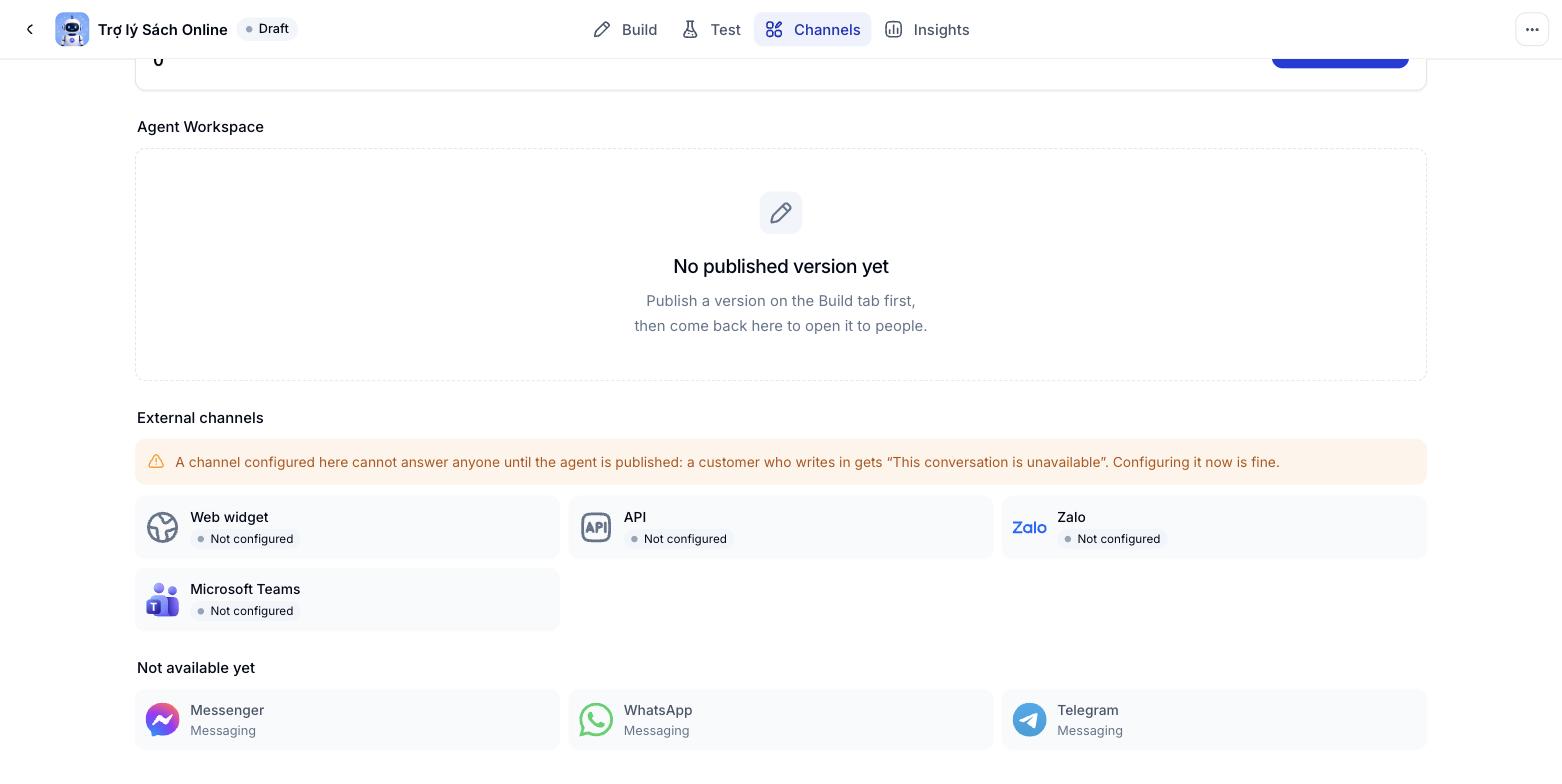 Microsoft Teams sits in the **External channels** group, next to Web widget, API and Zalo. The card shows **Not configured** until you connect it.
A channel configured here cannot answer anyone until the Agent is published. People who message it get a notice that the conversation is unavailable. You can still configure it in advance.
## Prepare on Azure
Before you fill in the Console, you need a bot registered in the Azure Portal. Three values come from there:
* **App ID**: The bot's Microsoft App ID, found in its App registration.
* **Client secret**: The secret's value, created in the same App registration.
* **Tenant ID**: The Entra directory (tenant) ID, needed only when the bot is registered single-tenant.
The App ID and the client secret both come from the bot's App registration in the Azure Portal - two different values on the same page.
## Connect Microsoft Teams
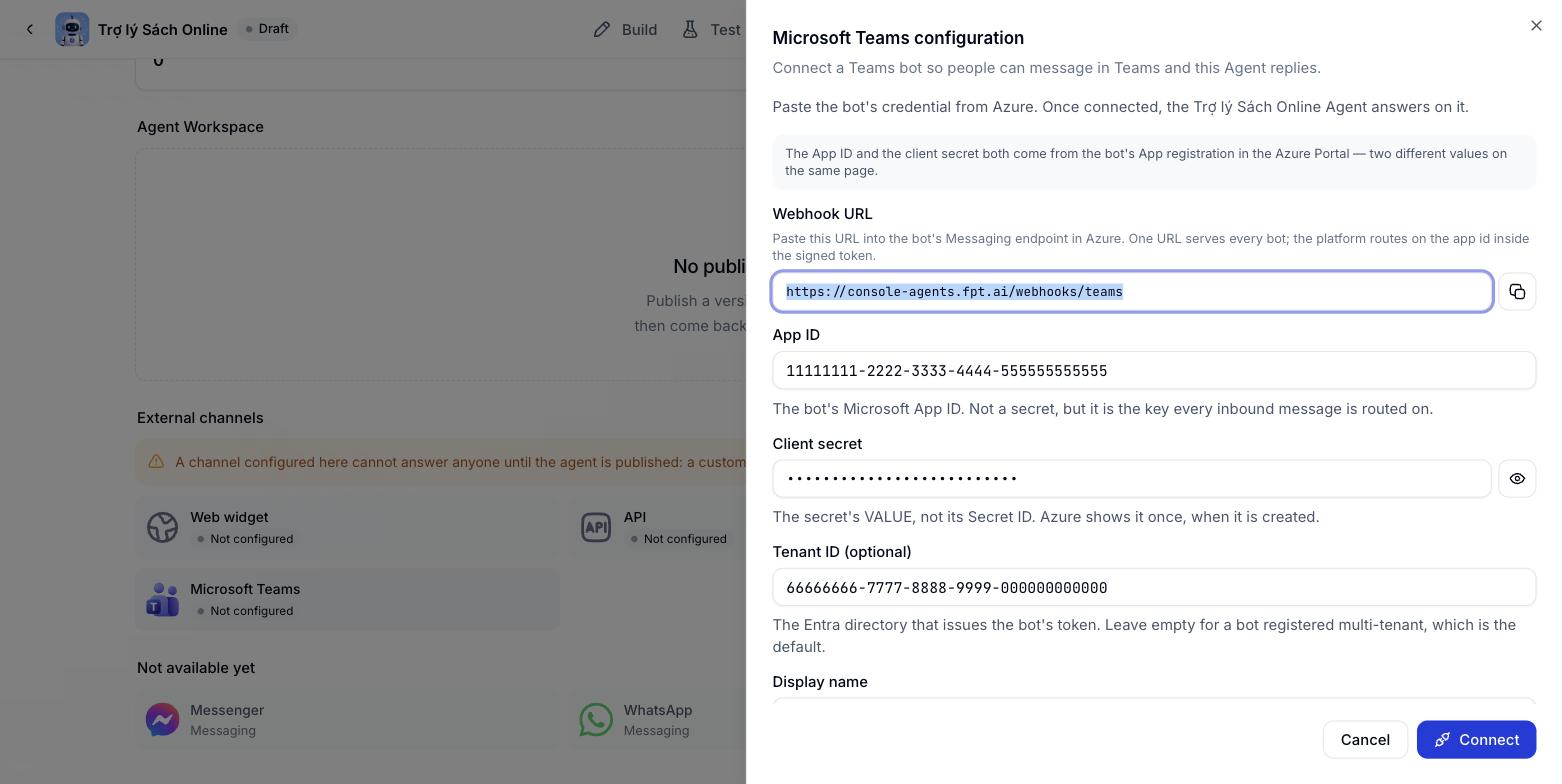
The **Microsoft Teams configuration** dialog opens.
The Console generates this URL and you cannot edit it. Click the copy button at the end of the field, then paste it into the bot's **Messaging endpoint** in Azure.
Paste both from the App registration. Click the eye icon to check the secret you just pasted.
Leave it empty for a bot registered multi-tenant.
This name appears in the channel list. Leave it empty and the Console uses the App ID as the label.
Click **Cancel** to close the dialog without saving.
Microsoft Teams sits in the **External channels** group, next to Web widget, API and Zalo. The card shows **Not configured** until you connect it.
A channel configured here cannot answer anyone until the Agent is published. People who message it get a notice that the conversation is unavailable. You can still configure it in advance.
## Prepare on Azure
Before you fill in the Console, you need a bot registered in the Azure Portal. Three values come from there:
* **App ID**: The bot's Microsoft App ID, found in its App registration.
* **Client secret**: The secret's value, created in the same App registration.
* **Tenant ID**: The Entra directory (tenant) ID, needed only when the bot is registered single-tenant.
The App ID and the client secret both come from the bot's App registration in the Azure Portal - two different values on the same page.
## Connect Microsoft Teams
The **Microsoft Teams configuration** dialog opens.
The Console generates this URL and you cannot edit it. Click the copy button at the end of the field, then paste it into the bot's **Messaging endpoint** in Azure.
Paste both from the App registration. Click the eye icon to check the secret you just pasted.
Leave it empty for a bot registered multi-tenant.
This name appears in the channel list. Leave it empty and the Console uses the App ID as the label.
Click **Cancel** to close the dialog without saving.
 ## Field reference
| Field | Required | What it means |
| - | - | - |
| Webhook URL | Read-only | The URL the Console generates. Paste it into the bot's Messaging endpoint in Azure. One URL serves every bot; the platform routes on the app id inside the signed token |
| App ID | Yes | The bot's Microsoft App ID. Not a secret, but it is the key every inbound message is routed on |
| Client secret | Yes | The secret's value, not its Secret ID. Azure shows it once, when it is created |
| Tenant ID | No | The Entra directory that issues the bot's token. Leave empty for a bot registered multi-tenant |
| Display name | No | The label shown in the channel list. Leave it empty and the App ID is used |
## Edit, pause and remove the channel
Click the Microsoft Teams card again to reopen the dialog and change what you saved. To stop the channel, clear the App ID and Client secret and save, Teams returns to **Not configured** and the Agent no longer answers on the bot.
If you rotate the client secret on Azure, come back here and paste the new value, otherwise the bot stops answering once the old secret expires.
## Notes
* The client secret is sensitive. Do not share screenshots that show it.
* One Agent can serve several channels at once. The Teams channel works independently of Web widget, API and Zalo.
* Once the channel is connected, publish the Agent so real users can message it.
This documentation is built and hosted on [Mintlify](https://mintlify.com), a developer documentation platform.
## Field reference
| Field | Required | What it means |
| - | - | - |
| Webhook URL | Read-only | The URL the Console generates. Paste it into the bot's Messaging endpoint in Azure. One URL serves every bot; the platform routes on the app id inside the signed token |
| App ID | Yes | The bot's Microsoft App ID. Not a secret, but it is the key every inbound message is routed on |
| Client secret | Yes | The secret's value, not its Secret ID. Azure shows it once, when it is created |
| Tenant ID | No | The Entra directory that issues the bot's token. Leave empty for a bot registered multi-tenant |
| Display name | No | The label shown in the channel list. Leave it empty and the App ID is used |
## Edit, pause and remove the channel
Click the Microsoft Teams card again to reopen the dialog and change what you saved. To stop the channel, clear the App ID and Client secret and save, Teams returns to **Not configured** and the Agent no longer answers on the bot.
If you rotate the client secret on Azure, come back here and paste the new value, otherwise the bot stops answering once the old secret expires.
## Notes
* The client secret is sensitive. Do not share screenshots that show it.
* One Agent can serve several channels at once. The Teams channel works independently of Web widget, API and Zalo.
* Once the channel is connected, publish the Agent so real users can message it.
This documentation is built and hosted on [Mintlify](https://mintlify.com), a developer documentation platform.