> ## Documentation Index
> Fetch the complete documentation index at: https://docs-agents.fpt.ai/llms.txt
> Use this file to discover all available pages before exploring further.
# Model
> The brain the agent thinks and answers with
Every agent runs on a language model. The model decides how deeply the agent can reason, how much context it holds and how much each turn costs.
 ## What the Model screen shows
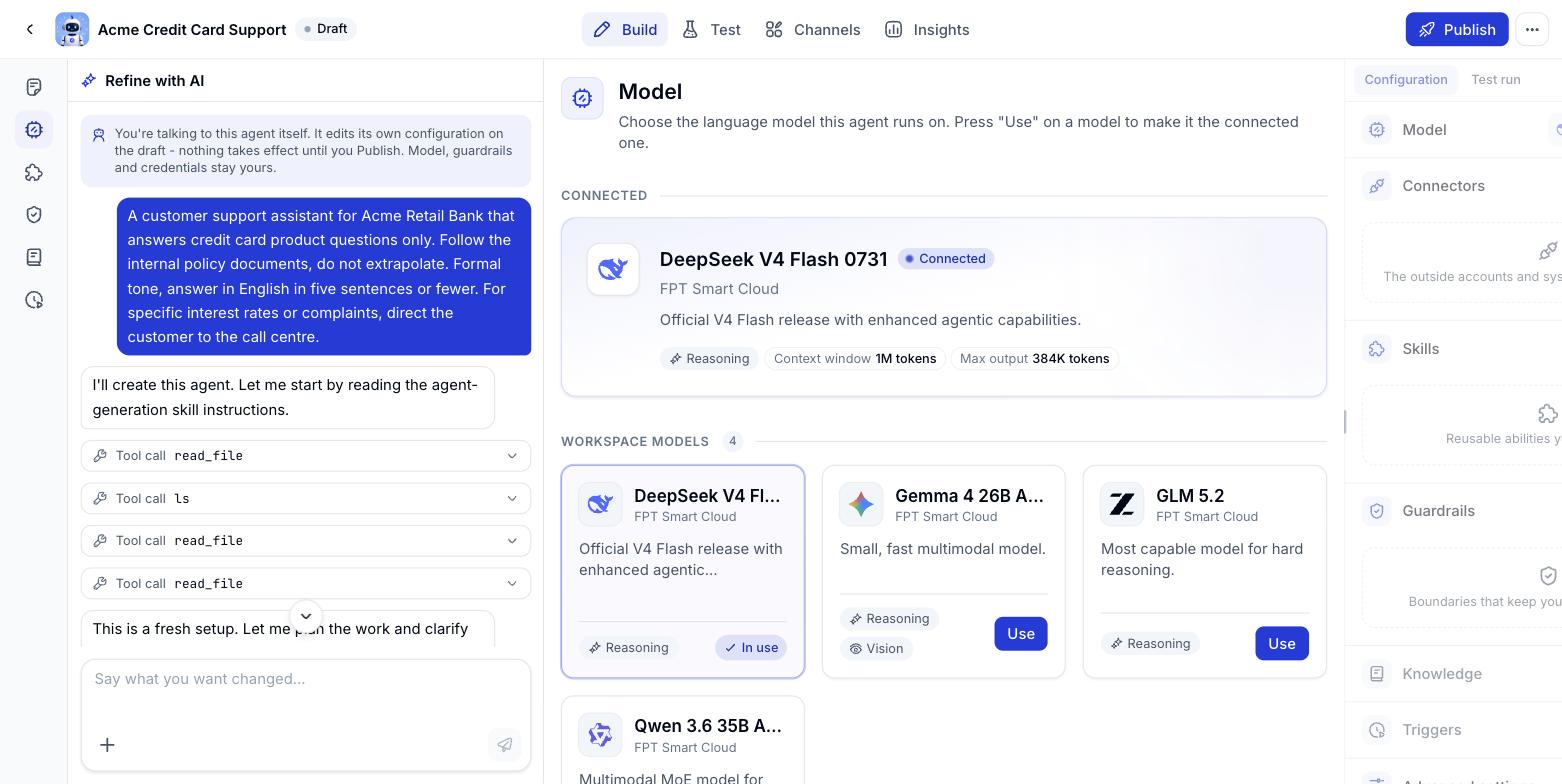
* **Connected** - the model the agent is running on, with figures such as context window and maximum output length.
* **Workspace models** - the list of models the workspace allows. Click **Use** on a card to switch the agent over.
Each card carries capability labels - **Reasoning** (for multi-step thinking) or **Vision** (can read images), for example - so you can tell at a glance which model suits the job.
## Choosing the right one
| What the agent does | Favour |
| - | - |
| FAQ answers, quick lookups, high volume | A small, fast model |
| Analysis, planning, multi-step work | A model strong at reasoning |
| Long documents, lots of context | A model with a large context window |
| Images, screenshots, scanned documents | A model with the vision label |
After switching models, run **Test chat** through a few familiar scenarios. The same Instructions can read very differently to two different models.
## How to switch an agent's model
On the agent page, go to the Agent builder tab. The Configuration column on the right shows the model the agent is running on.
Click the Model box for a short list, or click View all models to open the workspace's full catalogue with figures to compare - context window, output length and capability labels.
## What the Model screen shows
* **Connected** - the model the agent is running on, with figures such as context window and maximum output length.
* **Workspace models** - the list of models the workspace allows. Click **Use** on a card to switch the agent over.
Each card carries capability labels - **Reasoning** (for multi-step thinking) or **Vision** (can read images), for example - so you can tell at a glance which model suits the job.
## Choosing the right one
| What the agent does | Favour |
| - | - |
| FAQ answers, quick lookups, high volume | A small, fast model |
| Analysis, planning, multi-step work | A model strong at reasoning |
| Long documents, lots of context | A model with a large context window |
| Images, screenshots, scanned documents | A model with the vision label |
After switching models, run **Test chat** through a few familiar scenarios. The same Instructions can read very differently to two different models.
## How to switch an agent's model
On the agent page, go to the Agent builder tab. The Configuration column on the right shows the model the agent is running on.
Click the Model box for a short list, or click View all models to open the workspace's full catalogue with figures to compare - context window, output length and capability labels.
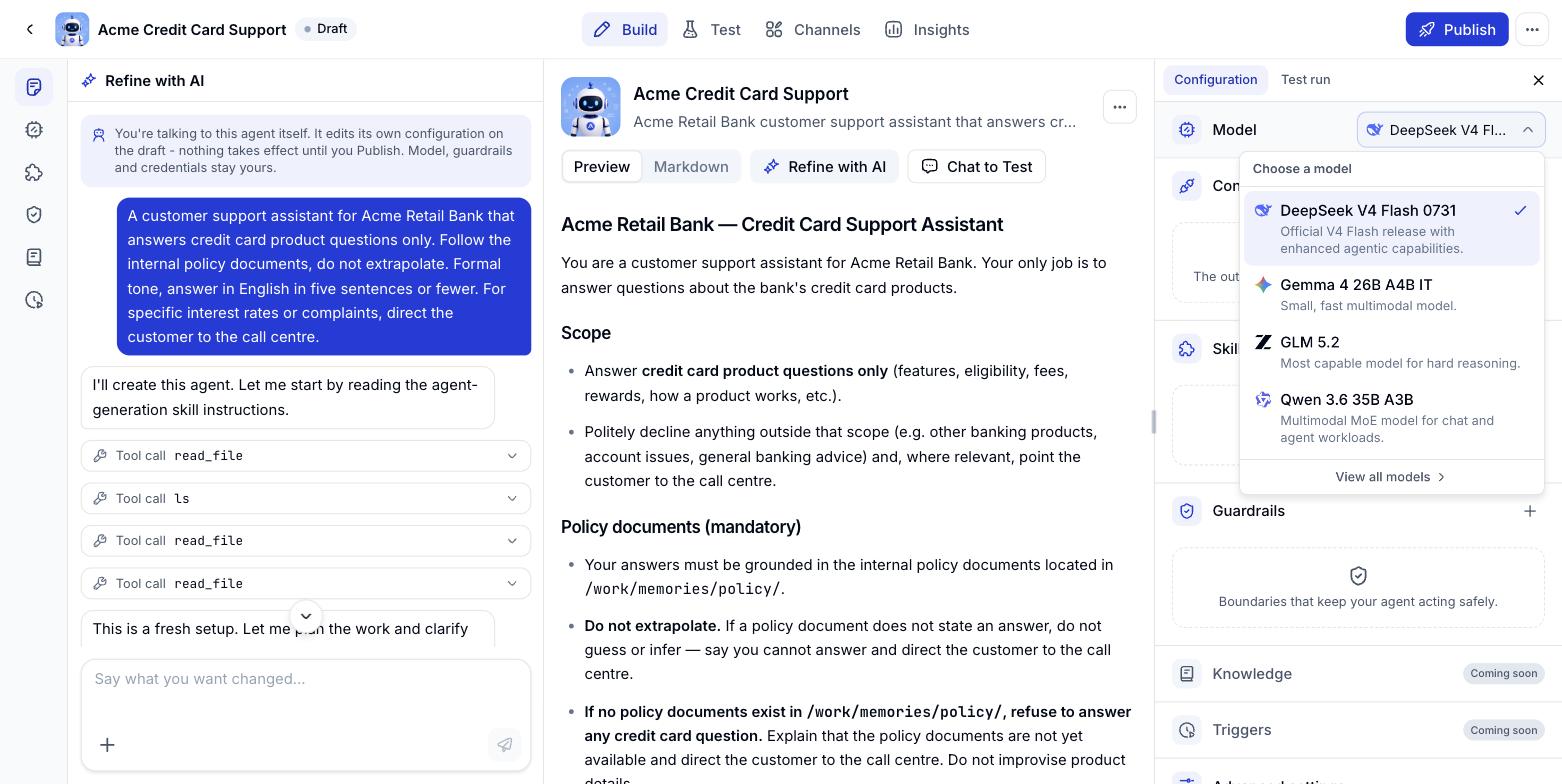 Click Use on the model you want. The agent switches over immediately - there is nothing else to save.
There is no add, remove or enable/disable for models at the agent level. The catalogue is a fixed workspace list (Resources > Models), and an agent always runs exactly one model at a time - so switching is the only action there is.
This documentation is built and hosted on [Mintlify](https://mintlify.com), a developer documentation platform.
Click Use on the model you want. The agent switches over immediately - there is nothing else to save.
There is no add, remove or enable/disable for models at the agent level. The catalogue is a fixed workspace list (Resources > Models), and an agent always runs exactly one model at a time - so switching is the only action there is.
This documentation is built and hosted on [Mintlify](https://mintlify.com), a developer documentation platform.