
Keeping the two apart lets several agents read one knowledge base without opening edit rights to everybody.
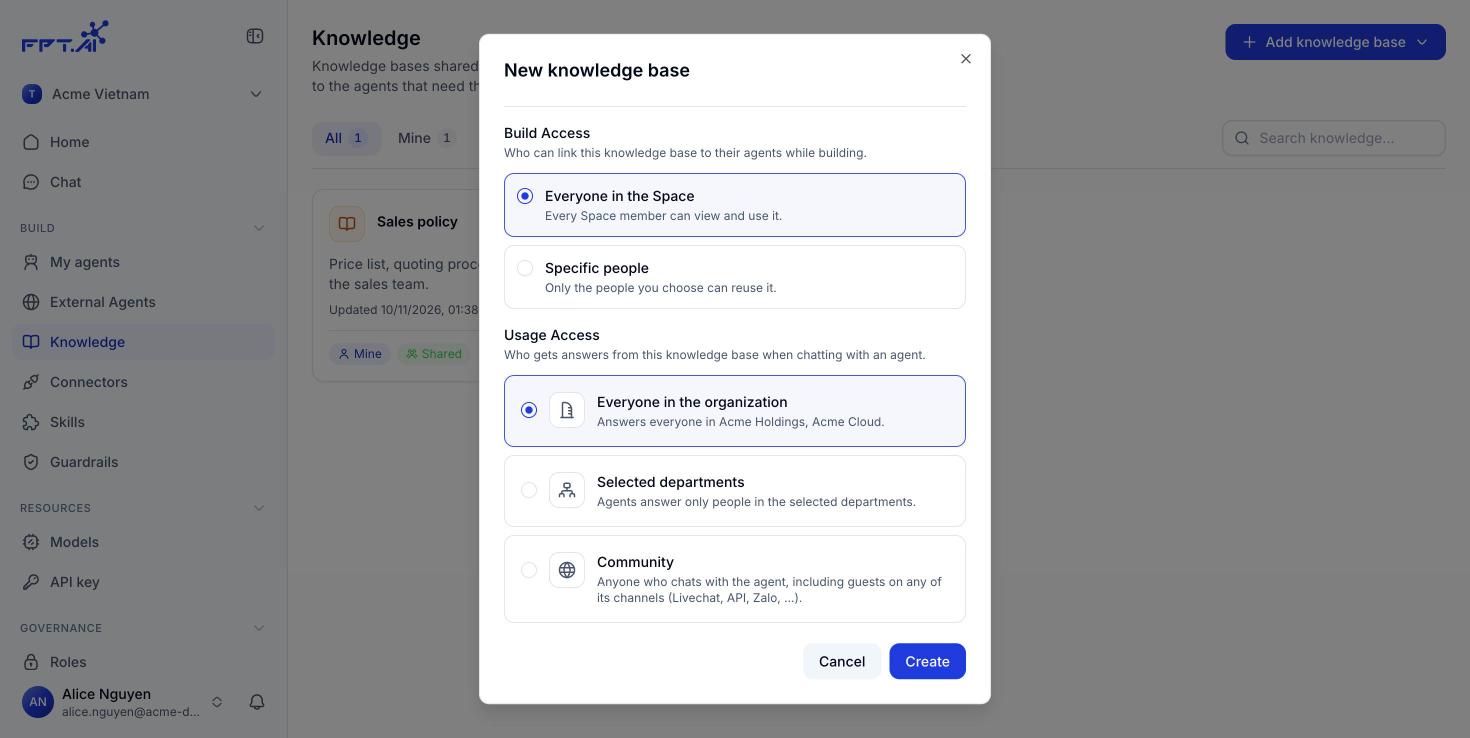
Build access
It answers the question: Who can link this knowledge base to an agent while building.
When you choose Specific people, a picker appears so you can add them one by one. You have to add at least one person before you can save.
The owner always keeps management rights over their own knowledge base, even at the Specific people level and even without adding themselves to the list.
Usage access
It answers the question: Who receives answers drawn from this knowledge base when chatting with an agent.
When you choose Selected departments, the organization’s department list appears with a search box and the headcount of each department. You have to pick at least one.
Changing the permissions later
You set both groups when you first create the knowledge base, but you can change them at any time.1
Open the knowledge base ⋯ menu
On the Knowledge screen, click ⋯ on the knowledge base card. The menu has View details, Edit, Build access, Usage access and Delete.
2
Pick the permission group to change
Choose Build access or Usage access. Each one opens its own dialog, so you do not have to reopen the whole form.
3
Save
The change takes effect immediately for every agent linked to the knowledge base, with no need to publish the agent again.
Narrowing Build access does not detach the knowledge base from agents that are already using it. To stop an agent from using it, open that agent and choose Unlink in the Knowledge section.