
Both directions share one secret and one signing scheme, so you write the signature function once and reuse it for sending and receiving.
Choosing an integration channel
The two are not mutually exclusive. One agent can serve the website widget and your system over the API channel at the same time. Each is a separate connection with its own key.
Environments and domains
Everything sits under one application domain and is told apart by path: the API channel’s inbound message webhook is
https://console-agents.fpt.ai/webhooks/api, while the history API is https://console-agents.fpt.ai/direct-bff/…. Always copy the exact webhook address from Console rather than deriving it.Connecting the API channel and getting your keys
1
Sign in to the FPT AI Agent Platform
Open Console and sign in with your account.
2
Pick the agent to configure
This agent will answer the messages your system forwards.
3
Open the Channels tab
Channels is on the agent’s navigation bar.
4
Click the API tile
The API channel configuration panel opens.
5
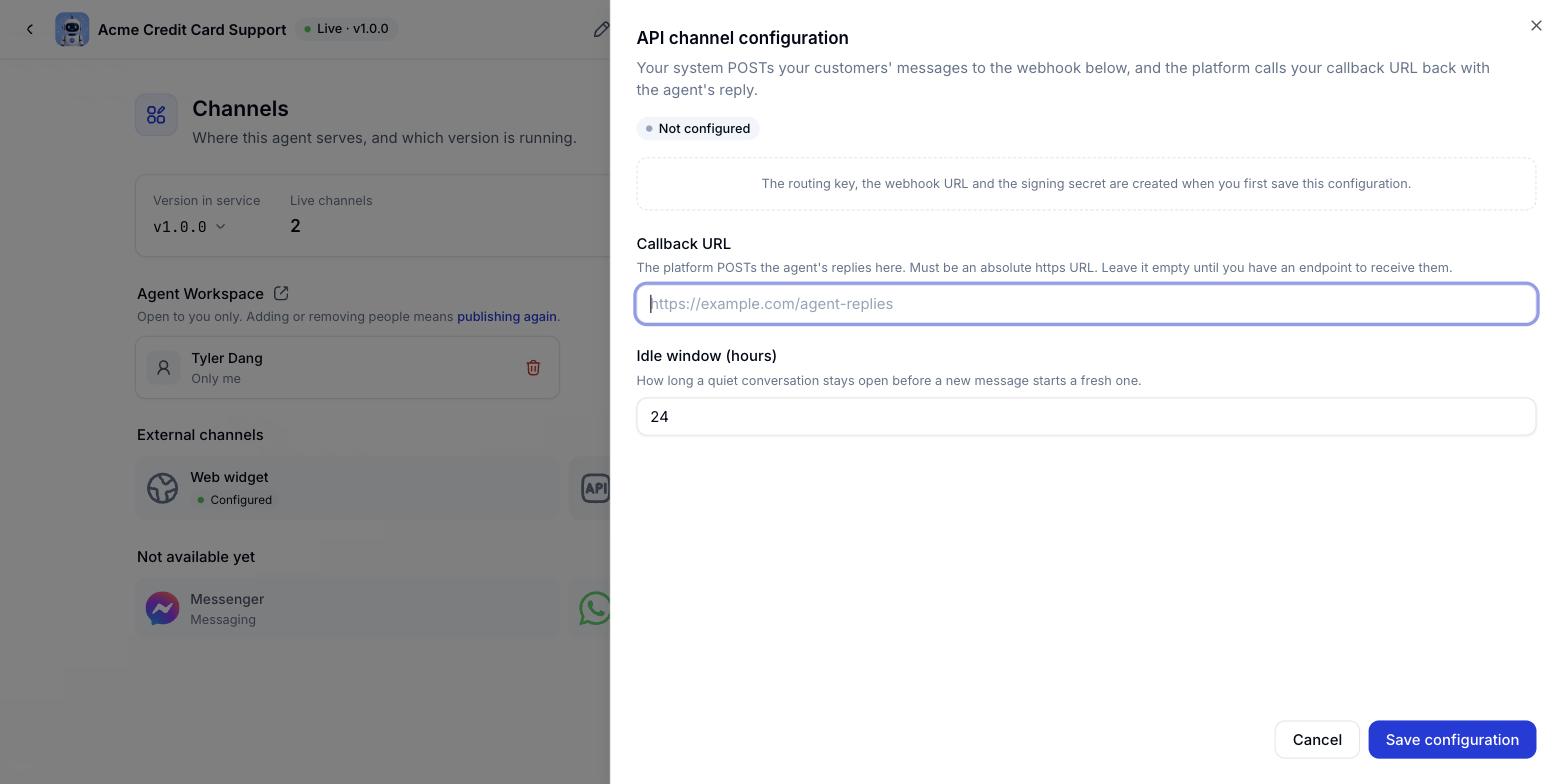
Fill in the channel configuration
Two fields - see the table below.
6
Click Save configuration to create the channel
The API tile on the Channels tab switches to Configured.
7
Click Generate new key
Copy the routing key and the signing key before you close the dialog.
What you get
Testing the callback URL
The Test callback button beside the input sends a signed request to your address and expects the right answer back. See Verifying your webhook endpoint below for how to implement it. The button is limited to 10 tests per minute per organisation.Rotating the secret
1
Click Generate new key
From this moment, both the old and the new key are accepted.
2
Roll the new key out to all your servers
Re-check both the sending and receiving paths.
3
Click Finish rotation
The old key is disabled. Only the new one works from then on.
Verifying event payloads
Every packet in both directions is signed with HMAC-SHA256 using the channel secret. The signature travels in theX-Hub-Signature-256 header with a sha256= prefix, alongside an X-Hub-Timestamp header carrying the send time.
The signed string is the timestamp, a dot, and the raw body:
- Sign the exact bytes you send. Parsing the JSON into an object and re-serialising it, even if only the key order changes, produces a different signature.
- The timestamp is inside the signature, so an attacker who captures a packet cannot alter it. Send the current Unix time in seconds.
- A timestamp more than 5 minutes off the server clock in either direction is rejected. Keep your servers NTP-synced.
- There are no exceptions. There is no signature-skipping mode, and no exemption for connections that have not generated a key.
Signing in Go
Signing in Node.js
Verifying signatures the platform sends you
Reuse the same function, then compare with a constant-time comparison so nothing leaks through timing:Receiving customer messages
Messages your customers send to your system are forwarded to the platform over the webhook. The event has two parts: the payload, and the signature that authenticates it.A text message
A message from a button or quick reply
A message with an attachment
Parameters
postback reaches the agent as separate context and is never treated as something the customer said. That is how the agent tells apart what a person typed from what your interface carried along. One field covers both buttons and quick replies.A cURL example
Response codes
200 means accepted, not answered. The agent works asynchronously and the answer reaches your webhook afterwards.
Deduplication
messageId is the end-to-end deduplication key. A message with the same (integrationKey, messageId) pair resent within 5 minutes is recognised and skipped, so retrying after a timeout does not give your customer two answers.
Inbound attachments
Each item inattachments needs a url the platform can fetch. The file contents are copied into your organisation’s storage and handed to the agent, so the URL you supply does not need to live long afterwards.
Attachment upload is off until an administrator enables it. When it is off, and for any file that is over the limit or fails to download, the file is skipped but
text still reaches the agent. A message with attachments is therefore never an error, and you cannot tell from the response code whether the file was taken.Additional data
Yourmetadata object reaches the agent nested under client_metadata. It is never merged into the top level, because the keys there - the recipient identifiers above all - decide who the answer goes to.
Unknown fields at the top level of the body are ignored, so you can add your own without being rejected.
Agent message callbacks
The agent’s answers are sent to your webhook as a signed POST. Like the inbound direction, the event has two parts: the payload and its signature.Verifying your webhook endpoint
Before the first real message, you can ask the platform to prove your endpoint is the one it thinks it is. The Test callback button on Console sends a signed request:challenge:
- The verification request is signed exactly like every other packet, so the function you already wrote works on it.
typeonly appears on verification requests, never on a real message.- Echoing
challengeis mandatory. A bare 200 is not enough: a parked domain, a CDN error page and a load balancer all return 200. - Each verification uses a different
challenge. - The platform does not follow redirects. A 301, 302 or 303 loses the request body, so it can never echo correctly.
- Nothing is stored. A pass means your endpoint answered correctly at that moment.
The callback event structure
On naming: the outer fields are lowerCamelCase (
eventId, integrationKey, conversationId, occurredAt), while the content blocks and the fields inside them are snake_case (quick_replies, sub_title, image_url, file_name). That is deliberate, not an oversight: the content blocks share a vocabulary with the chat widget and with conversation history.Button
QuickReply
Carousel
An image with buttons is sent as a carousel with a single item.
Reference
Attachment
No platform feature currently attaches files to an API channel answer turn, so
attachments has never appeared on a callback. The field is reserved for future compatibility. Inbound attachments work normally.Example payloads
A text message with no buttonsHandling callbacks
textis always present, even alongsidebuttonsorcarousels. It is the fallback rendering, so a text-only system still gets a coherent conversation.- Empty lists are absent, not
[].buttons,quick_replies,carouselsandreferencesare omitted entirely when the turn has none. conversationIdandfrommay be absent on callbacks from older platform versions. Treat absence as undetermined.- Deduplicate on
eventId, notrunId. - Join your data on
conversationId, notrunId- arunIdis only one answer turn. - Return 200 immediately and process asynchronously. Each call has only 10 seconds; slow processing counts as a failure and triggers a retry.
When your endpoint fails
Callback URL requirements
https(http is only usable in internal development).- No credentials embedded in the URL. You authenticate the platform by signature, not by a secret hidden in a path.
- It must resolve to a public internet address. Loopback, private, link-local, unique-local, multicast and carrier NAT ranges are all rejected.
- The check runs at connection time, so a domain that resolves to an internal address is rejected too.
- At most 2048 characters.
Reloading conversation history
This is the recovery path for answer turns you never received. Because callbacks are at-most-once, after 3 failures the turn stays in the error queue; without this API that message would be lost to you.
A 200 response:
- Use the organisation API key, not the channel secret. The secret proves your server is forwarding a message; this is you reading your own data. A
visitorTokencan read its own session only; reading another returns 403SESSION_FORBIDDEN. - Cursor pagination, oldest first. Pass
afteras the id of the last message you hold;hasMoresays whether there is another page. - Message ids are strings, because they exceed JavaScript’s safe integer range, but they still sort numerically.
- Read
from, notrole. A human operator’s turn is stored with the sameroleas the agent’s. Herefromhas three values:customer,bot,operator. operatordoes not occur yet: the platform has no feature for staff to answer in place of the agent on this channel. The field is reserved for future compatibility.- Every row returned is a real turn. A row only appears when it has
text, buttons, quick replies, a carousel, citations or an attachment, so you do not have to filter out empty bubbles. - A malformed
afterreturns 400 rather than being silently ignored. - One 404 covers three cases: the conversation does not exist, it belongs to another organisation, or it is an internal staff conversation. Deliberately indistinguishable.
- Attachments carry only name, type and size, with no object key.
- Reading history does not consume the run quota. It has its own, 120 calls per minute per API key by default.
- When you exceed the history quota, the 429 comes with only a
Retry-Afterheader.
API keys and usage quotas
Creating an API key
The organisation API key is used for the history API and the file download link API. Create one on the API keys page in Console.- Keys look like
sk-followed by 32 random characters, for examplesk-9Kd2xQ…. - A key is shown exactly once, at creation. The system only stores a hash, so there is no way to see it again.
- The key list shows the first 12 characters so you can tell them apart.
- A key acts with the rights of whoever created it, so it grants nothing new.
Revoking and rotating keys
Revocation is a flag, not a deletion: a revoked key id is still resolvable afterwards so the audit trail stays readable. The list shows revoked keys too. Rotating an API key is two steps in this order: create the new key first, revoke the old one second. In between, both work.Checking your usage
runsis the organisation’s daily UTC budget, shared across every conversation and every channel. It refills atresetsAt, which is 00:00 UTC.rate.limitis the per-minute limit for each caller.- Checking usage does not consume quota, so you can call it often.
- API keys only. A
visitorTokenis rejected with 403USAGE_FORBIDDEN.
Next steps
Live Chat channel
Use the platform’s ready-made chat window instead of building your own.
Mobile SDK
Bring the chat window into Android and iOS apps.
Technical appendix
Error codes, system limits and the pre-production checklist.