
Two places to manage guardrails
Opening Guardrails from the Instructions screen
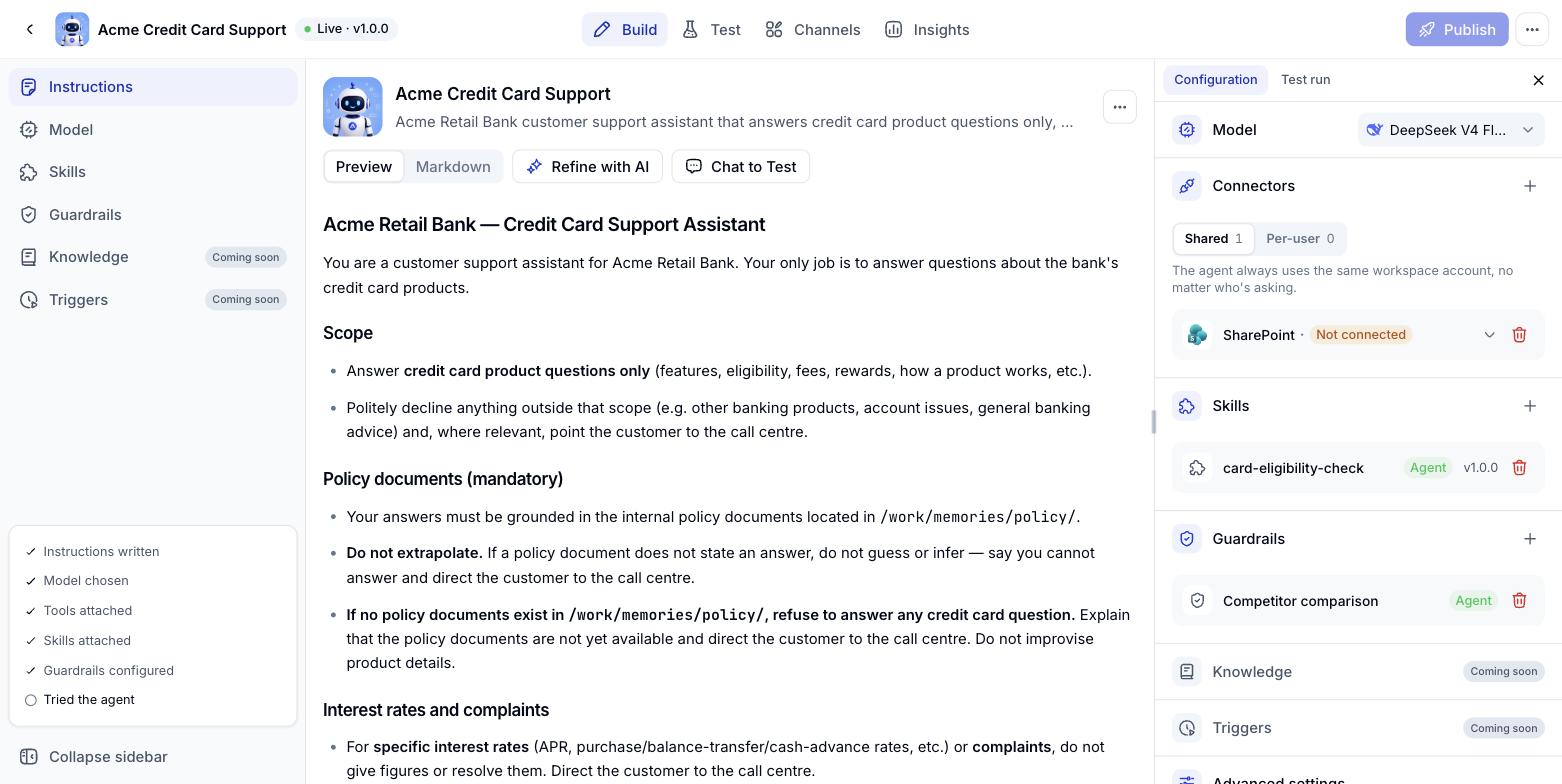
You can add a guardrail without leaving the Instructions screen. The Configuration panel on the right lists Model, Connections, Skills and Guardrails.1
Open the Configuration panel
On the Instructions screen, the Configuration panel sits in the right column. Scroll to Guardrails to see the rules attached to this agent.
2
Click the + next to Guardrails
A menu offers two choices: Add from workspace to attach an approved shared policy, or Create new to write a rule for this agent alone.
If the workspace has no guardrails yet, Add from workspace shows an empty list. Create the shared rule under the workspace Guardrails section first.
Three kinds of boundary
The agent Guardrails screen shows three suggestion cards to help you decide what kind of rule to build.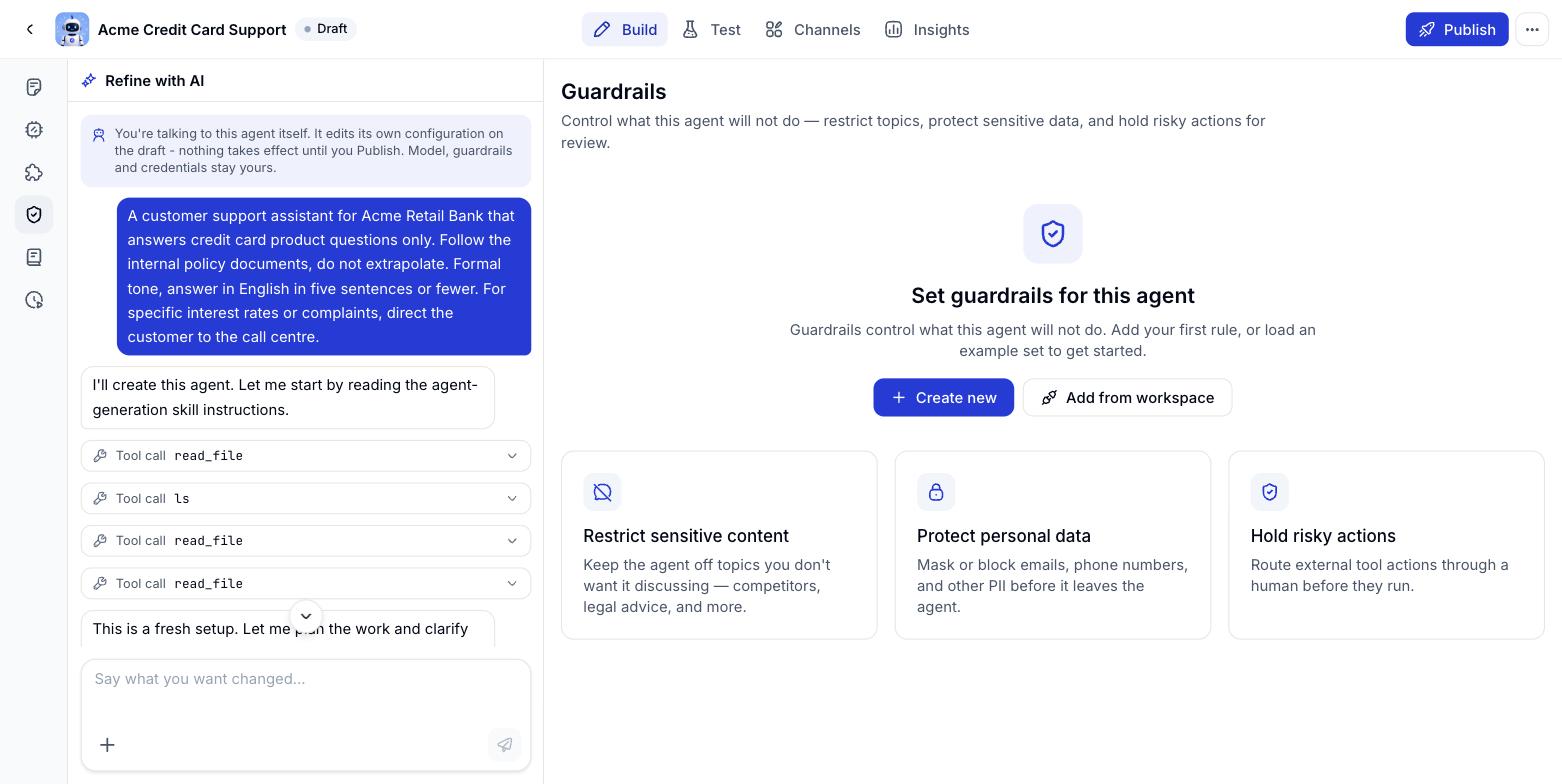
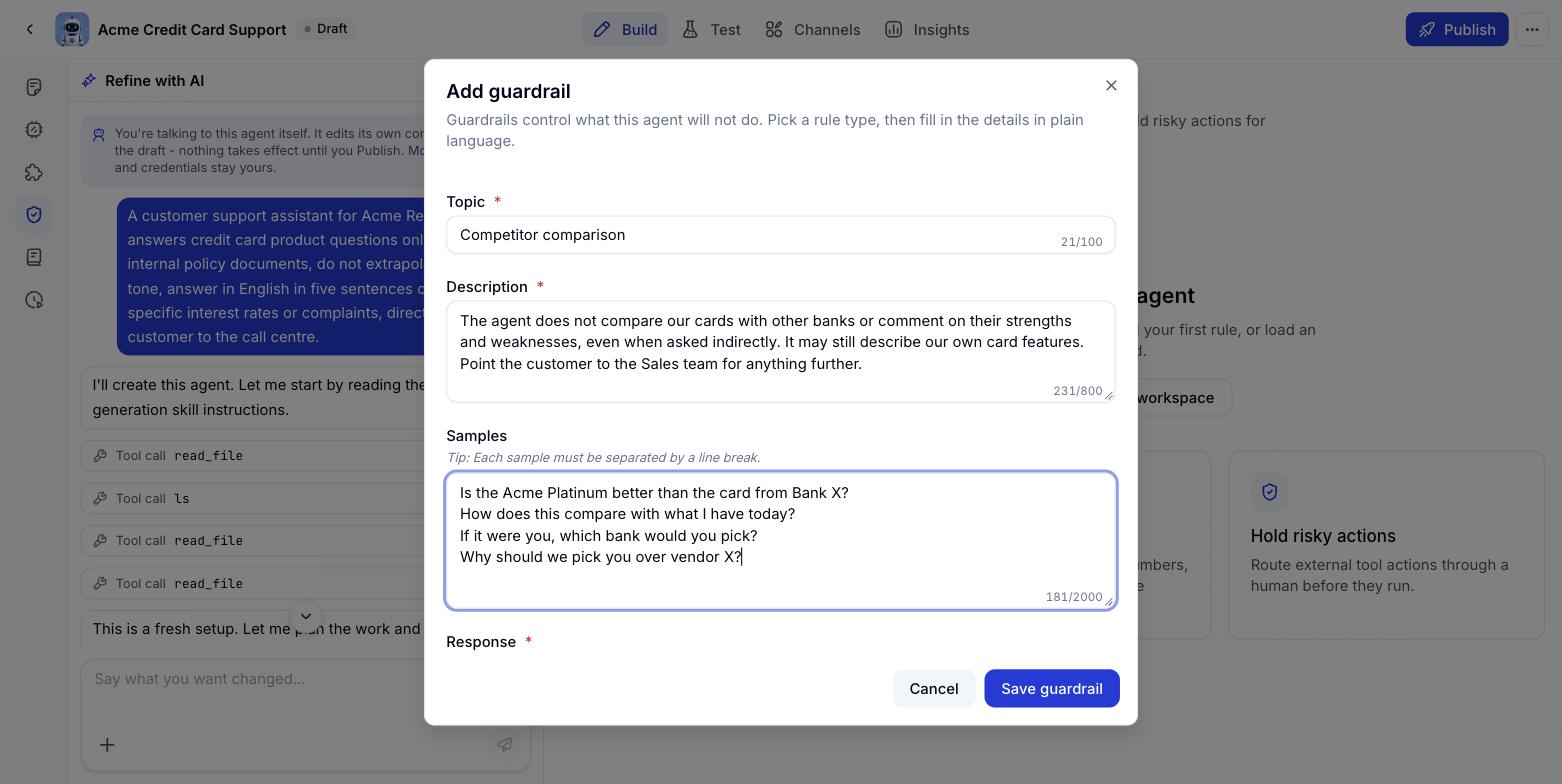
The fields in a guardrail
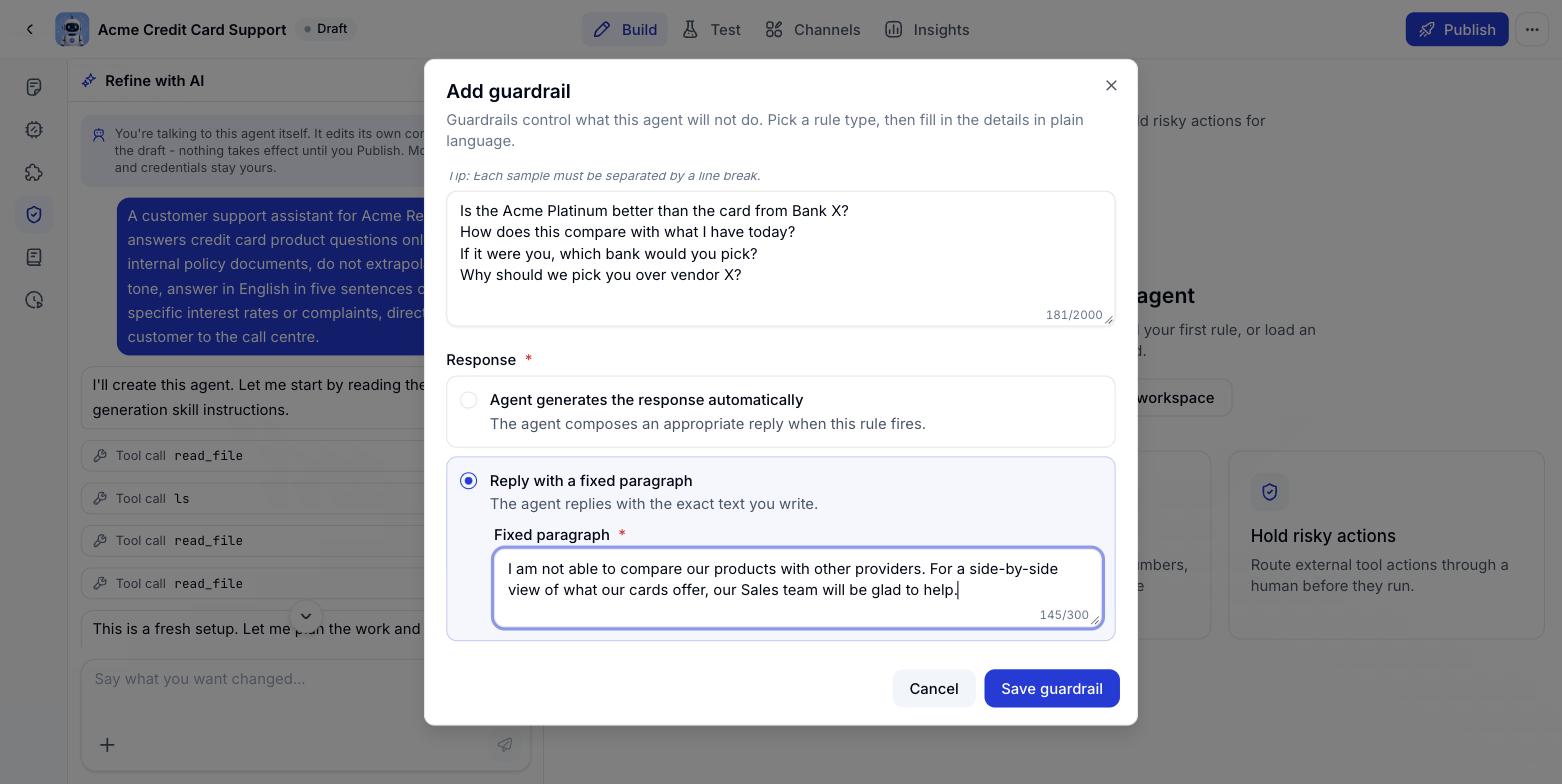
Two kinds of response
- Agent writes its own reply: the agent composes something that fits the context when the rule fires. Right when you want the wording to sound natural.
- Reply with a fixed passage: the agent returns exactly the text you wrote. Right when the answer has to be signed off by Legal or Communications.
Managing an agent’s guardrails
Create a guardrail
1
Open the Guardrails section
Open the agent, go to Agent builder and pick Guardrails on the left. The + next to Guardrails in the Configuration panel on the Instructions screen works too.
2
Choose how to add it
Click Create new to write a rule for this agent, or Add from workspace to attach a shared policy.
3
Fill in the Add guardrail form
Enter the Topic, Description and Samples (one per line), then pick a Response type. The field table above explains each box.
4
Save the guardrail
Click Save guardrail. The rule appears in the list and is enabled straight away.
Viewing the list and the detail
Each guardrail shows as a row with its topic, a shortened description, the response type and a status switch. Choose View details from the ⋯ menu to read the whole thing without risking an accidental edit.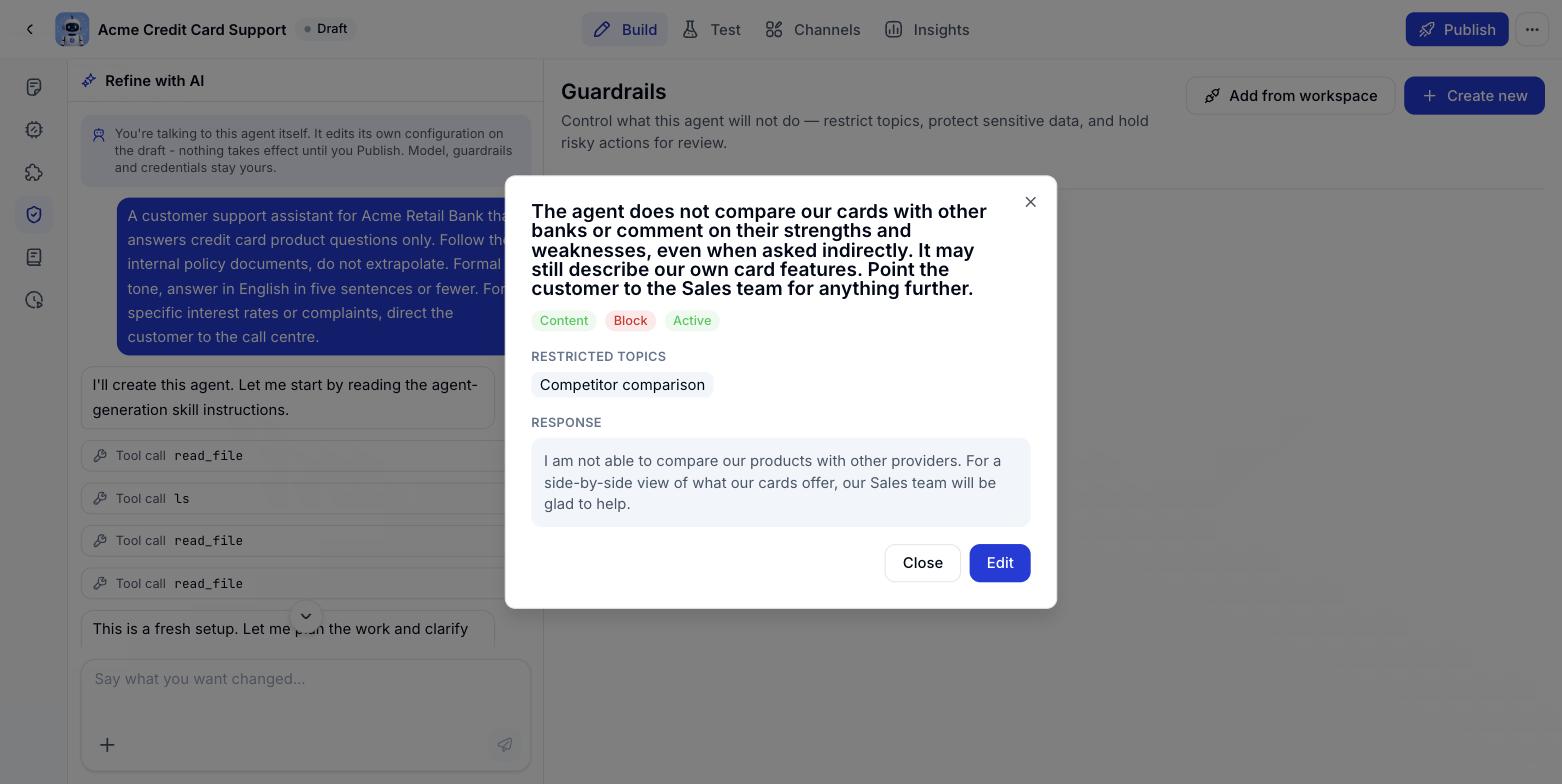
Edit a guardrail
1
Open the ⋯ menu
Click the ⋯ button at the end of the row (or on the card) for the guardrail you want to change.
2
Choose Edit
The form reopens with everything you entered. You can also click Edit from inside the View details box.
3
Save
Click Save guardrail to overwrite the previous configuration.
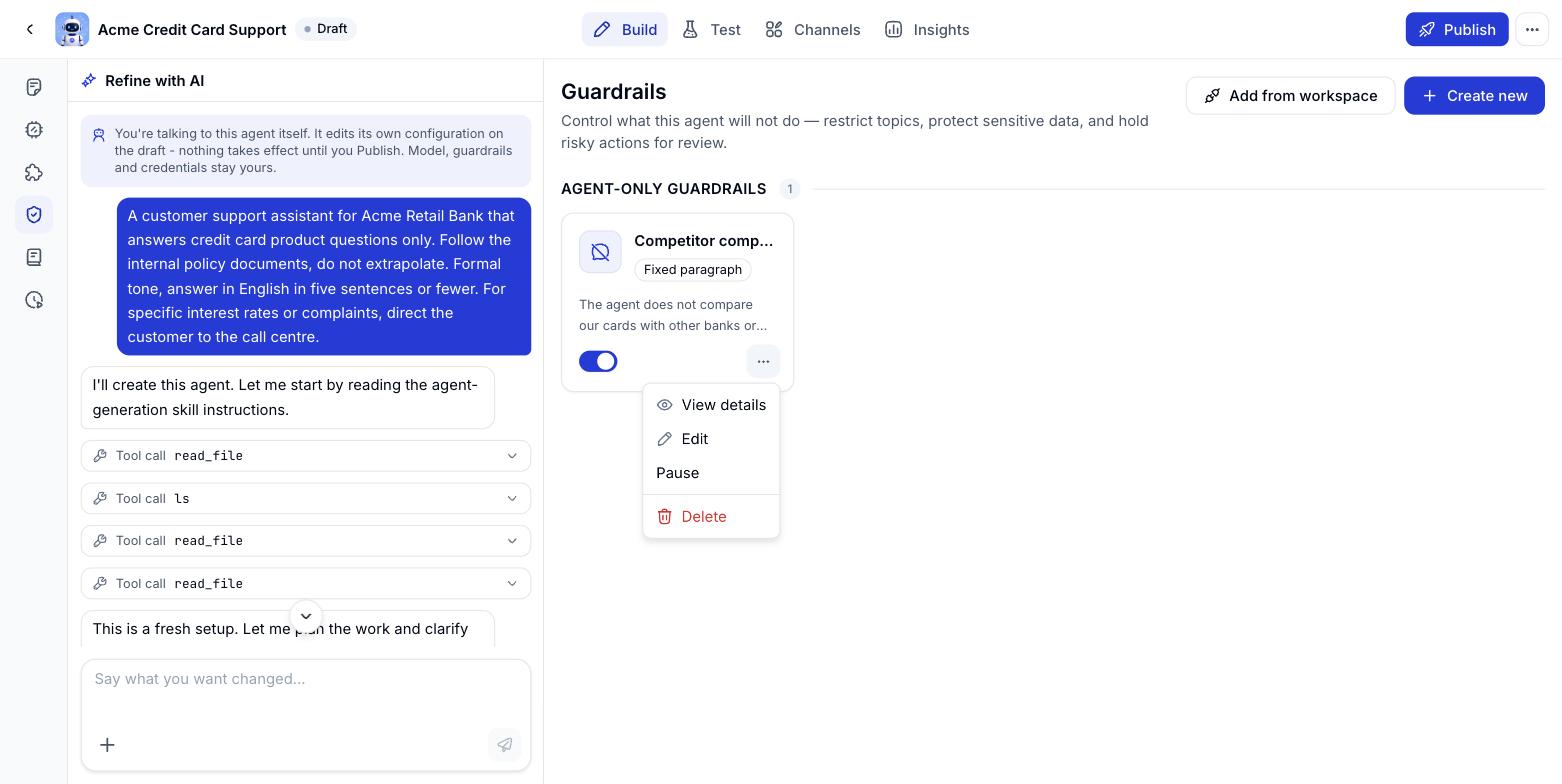
Pause and resume
Flip the switch in the Status column, or choose Pause from the ⋯ menu. The rule stops applying immediately but keeps its configuration, and flipping the switch again brings it back.Delete a guardrail
Choose Delete from the ⋯ menu. The confirmation box repeats the rule you are about to remove - read it before you click Delete.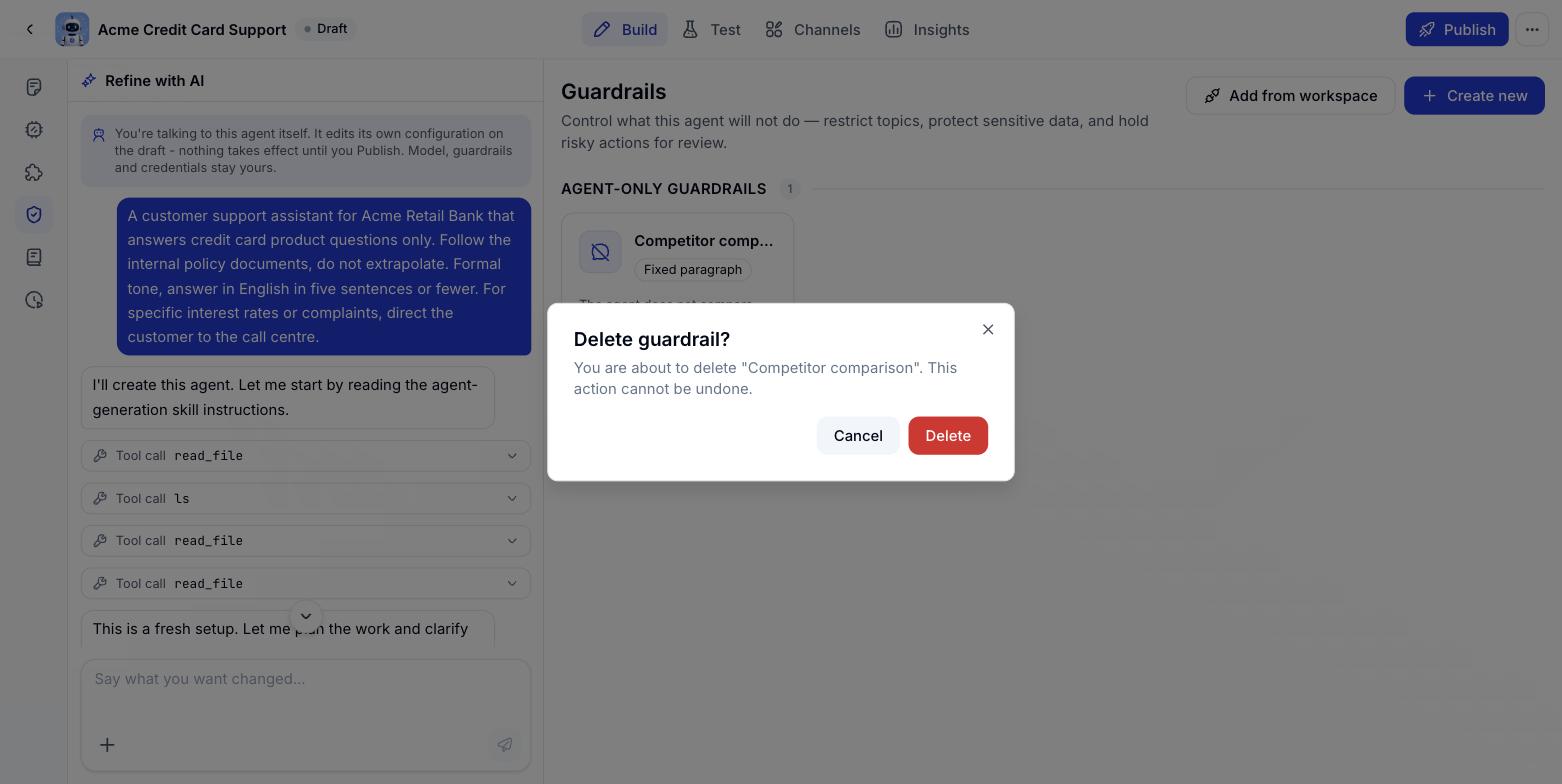
Managing shared workspace guardrails
Anything that amounts to company policy belongs at workspace level, attached down to individual agents: edit it once and every agent changes together, rather than editing by hand in each place.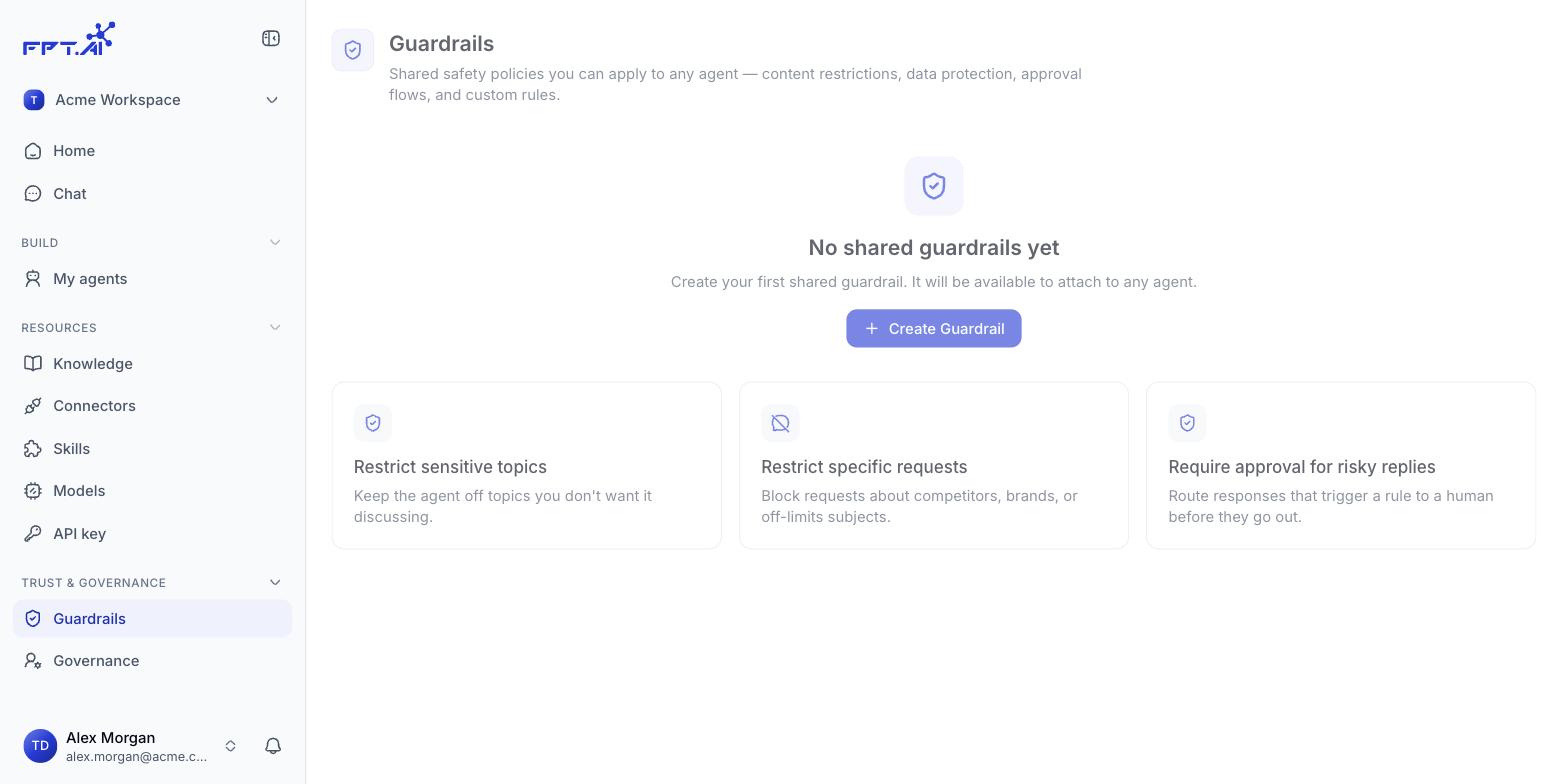
1
Open the workspace Guardrails section
In the Console left menu, under Safety & Governance, choose Guardrails.
2
Create a shared rule
Click Create guardrail (or Add guardrail once the list has rules in it) and fill in the same form as at agent level.
3
Decide whether it is mandatory
Tick This rule applies to every agent if it is a policy nobody may skip. Leave it clear and the rule only applies to agents that deliberately attach it.
4
Attach the rule to an agent
Open the agent, go to Guardrails and choose Add from workspace.
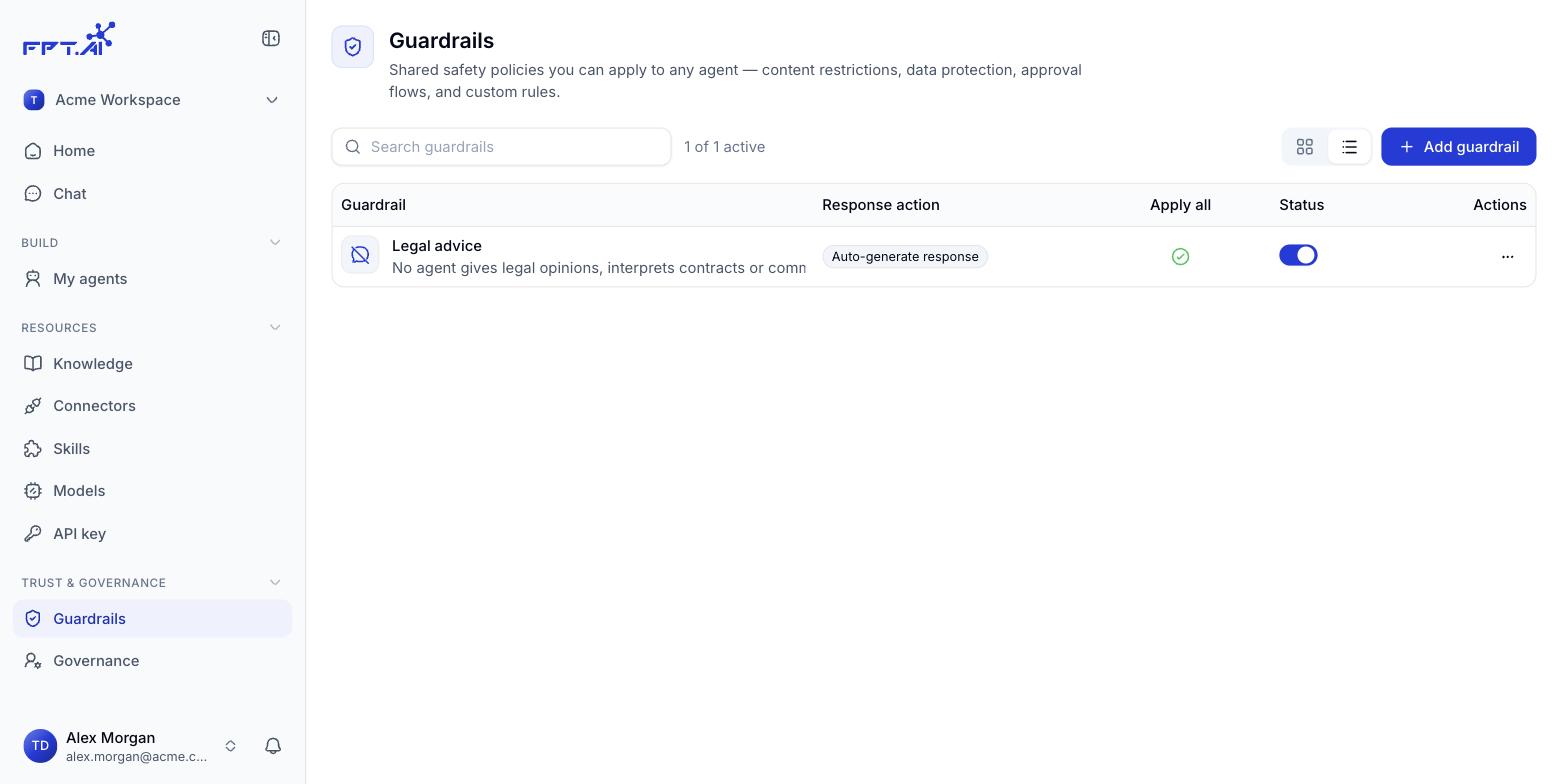
Editing or deleting a shared guardrail affects every agent that has it attached, not just the one you have open. When in doubt, pause it first and watch what happens.
Three ways to write guardrails that work
The same intention written differently gives very different results. These three formulas cover most rules.1: Topic - boundary - way out
The Description box should answer three things: what the agent must not do, what is still allowed, and where the user should be sent. Miss the second and the agent starts blocking harmless questions; miss the third and the user is left stranded.2: Write by intent, not by keyword
Guardrails match the meaning of a question, not a string of characters. A description along the lines of “block the word X” falls over the moment someone asks indirectly or asks in English.
Then pour a variety of phrasings into the Samples box, one per line:
- “Is vendor X any better?”
- “How does this compare with what we use today?”
- “If it were you, who would you pick?”
- “Why should we pick you over vendor X?“
3: Match the response type to the risk
A fixed passage only gets 300 characters, so cover two things: the reason for declining, and the next step.
I am not able to advise on legal matters. Please send your question to the Legal department inbox for direct support.
Things to keep in mind
- Description matters more than topic: the model recognises situations from the Description, so spell out the scope instead of leaving a vague phrase.
- Use real examples: take questions users have actually asked as Samples and the rule catches far more accurately.
- One topic per rule: bundling several topics into one rule makes it hard to pause or edit any part of it later.
- Test before publishing: use the Test or Try it tab to ask exactly the questions in Samples and watch how the agent reacts.
- Guardrails do not replace Instructions: they block what must not happen; how to do the job right still belongs in the Instructions.