
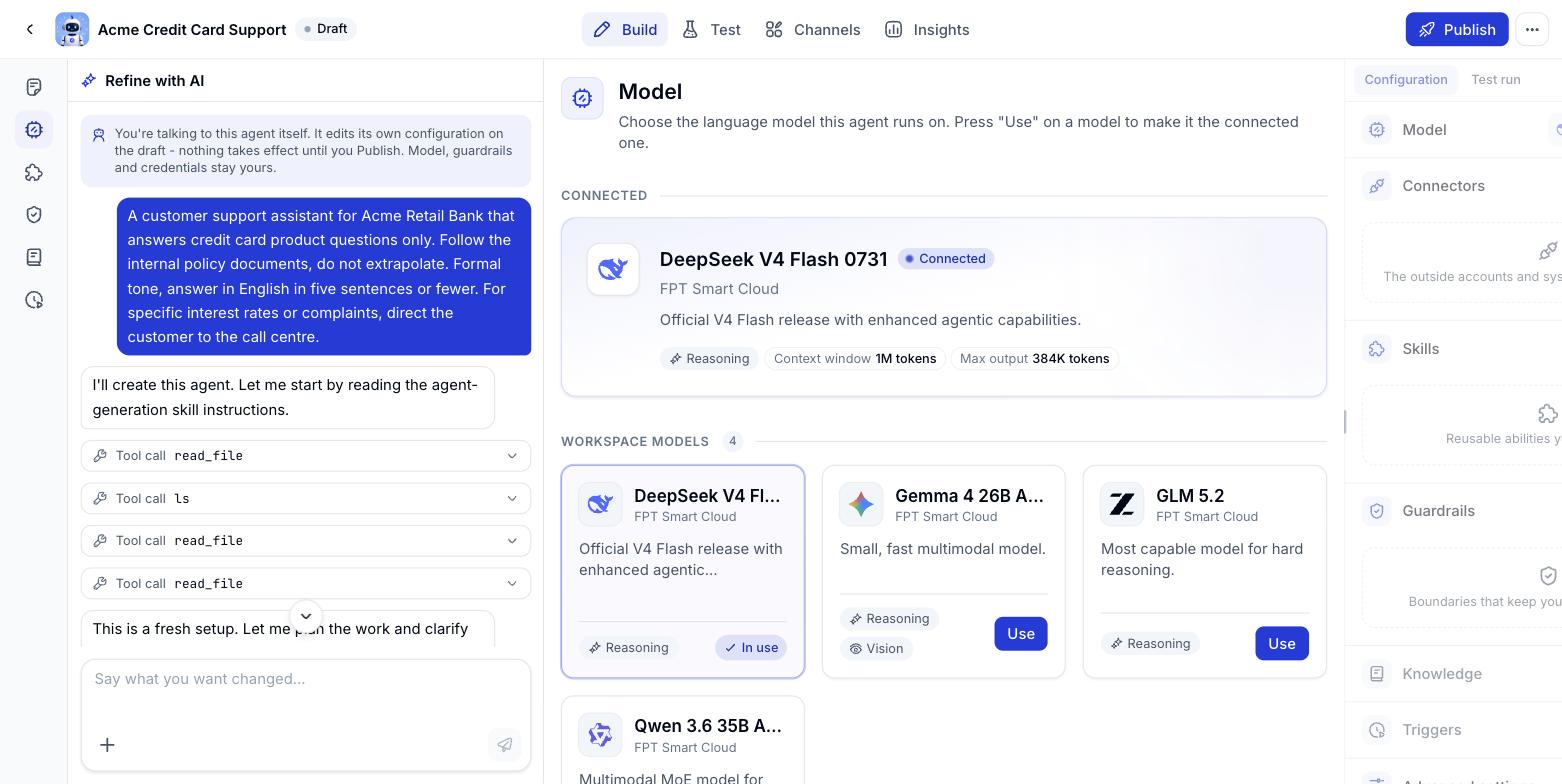
What the Model screen shows
- Connected - the model the agent is running on, with figures such as context window and maximum output length.
- Workspace models - the list of models the workspace allows. Click Use on a card to switch the agent over.
Choosing the right one
How to switch an agent’s model
1
Open the Model section
On the agent page, go to the Agent builder tab. The Configuration column on the right shows the model the agent is running on.
2
Look at the alternatives
Click the Model box for a short list, or click View all models to open the workspace’s full catalogue with figures to compare - context window, output length and capability labels.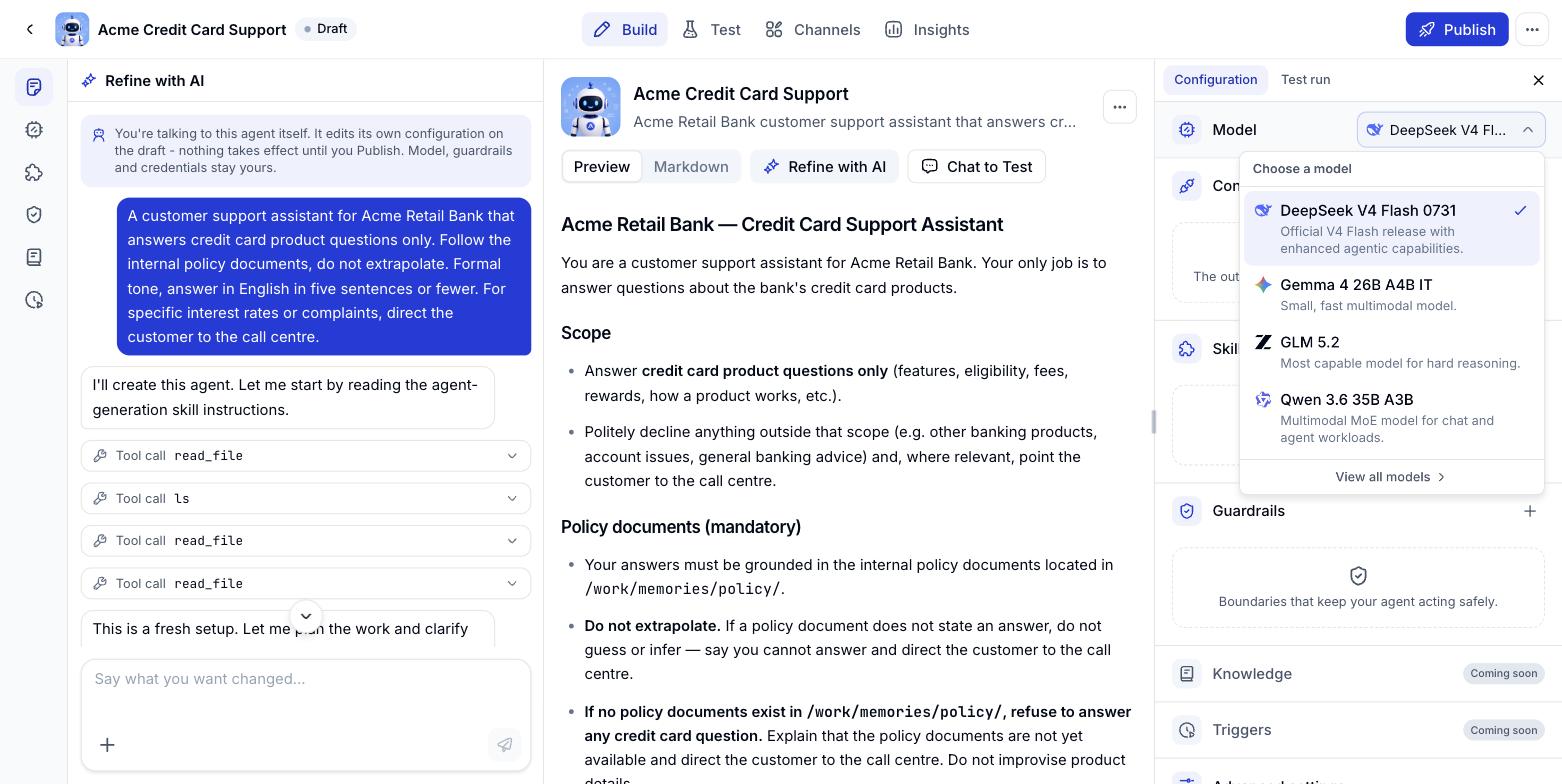
3
Click Use
Click Use on the model you want. The agent switches over immediately - there is nothing else to save.
There is no add, remove or enable/disable for models at the agent level. The catalogue is a fixed workspace list (Resources > Models), and an agent always runs exactly one model at a time - so switching is the only action there is.